Active Contacts is a self-hosted CRM for WordPress and ClassicPress. It captures leads through forms, chat and newsletter signups, manages contacts and opportunities, and automates follow-up with email workflows. All data is stored in the website database.
Contents
- Requirements
- Installation
- Getting started
- Contacts
- Forms
- Tags
- Email templates
- Workflows
- Pipelines and opportunities
- Tasks
- Newsletter
- Chat: guided, AI and WhatsApp
- Visitor tracking
- Import and export
- Users and permissions
- Settings, updates and uninstalling
- Shortcodes
- Merge tags
- Data and privacy
- Frequently asked questions
Requirements
- WordPress 5.3 or later, or ClassicPress 2.0 or later.
- PHP 8.1 or later.
- MySQL 5.7 or MariaDB 10.3 or later.
- Public access to the website REST API, which forms, chat and tracking use.
- Recommended: an SMTP plugin for email delivery, and a server cron job that runs
wp-cron.phpevery minute.
Installation
- In the website admin, go to Plugins → Add New → Upload Plugin, select the Active Contacts zip file, then install and activate it.
- Open the Active Contacts menu. The Dashboard links to every feature.
- On activation the plugin creates a “Contact us” form, a “Website Lead” tag and a “Sales” pipeline.
- Open Settings to set the notification address, the email signature and any custom contact fields.
- Updates are delivered through the standard Plugins screen.
Getting started
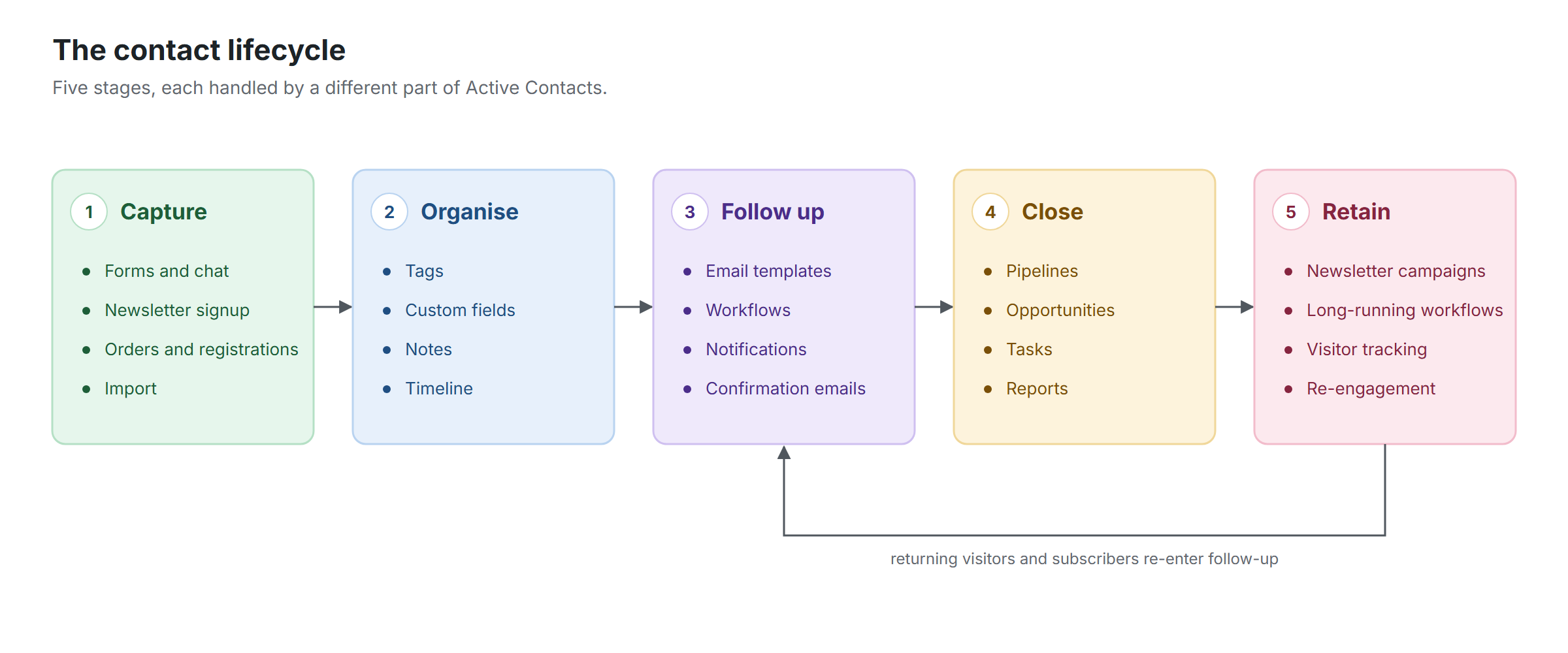
Active Contacts stores every lead in one place and automates follow-up. On activation it creates a “Contact us” form, a “Website Lead” tag and a “Sales” pipeline, so the essential workflow can be set up in a few minutes.
Procedure
- Open Forms, copy the shortcode of the “Contact us” form and add it to a page.
- Submit the form once as a test. The contact appears under Contacts and a notification email is sent.
- Open Templates and create a welcome email. Use {first_name} to personalise it.
- Open Workflows and create a workflow with the trigger “Form submitted” and a “Send email” step that uses the template.
- Optionally enable the chat or WhatsApp button, configure the newsletter, or import existing contacts.
Contacts
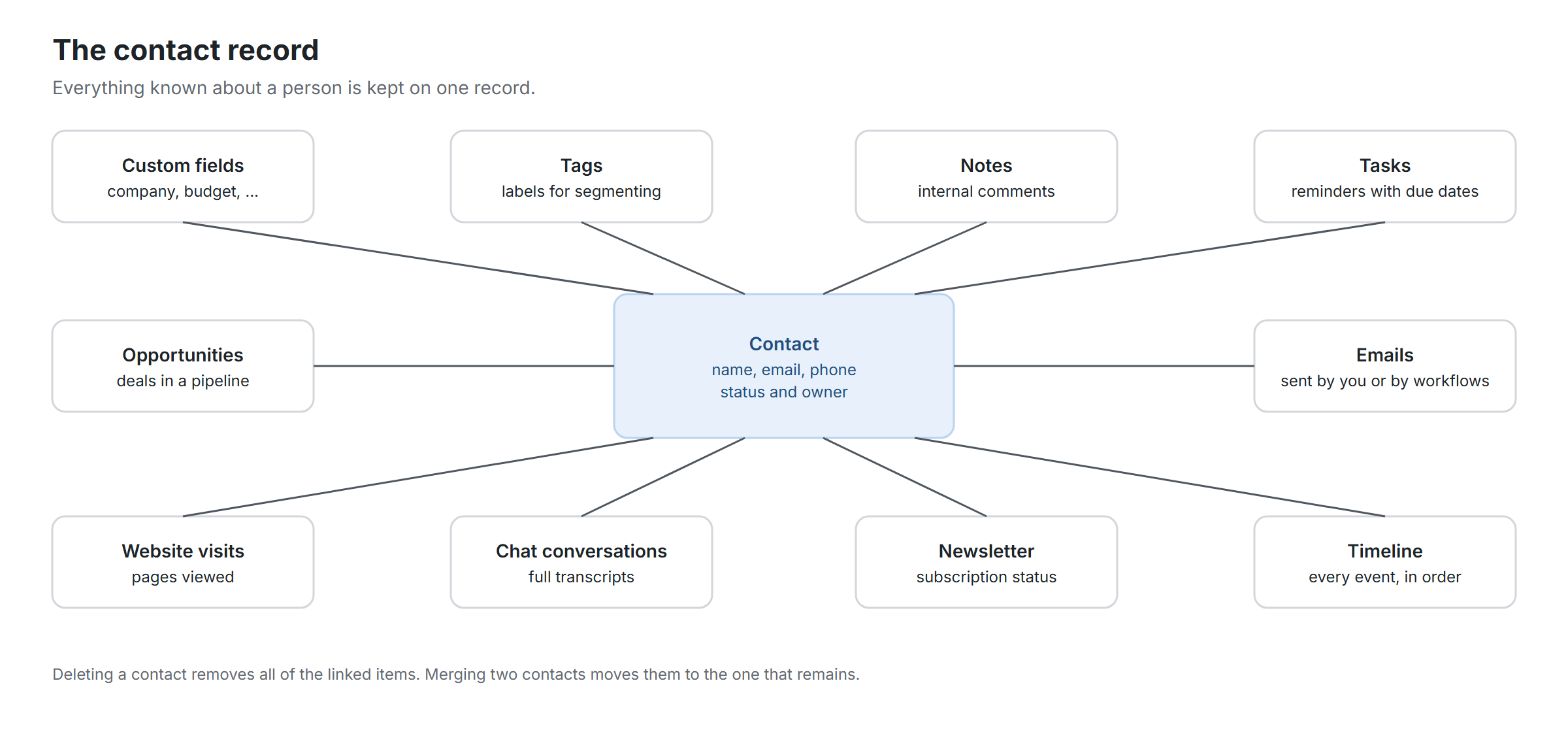
A contact record holds a person’s name, email address, phone number, custom fields, tags, notes, tasks, opportunities, website visits and a timeline of all activity.
Procedure
- Use the search box and the tag and status filters to find contacts.
- Select several contacts to apply a tag, change the status, export to CSV or delete in bulk.
- Open a contact to send an email, add a note or task, create an opportunity, start a workflow or merge a duplicate.
Details
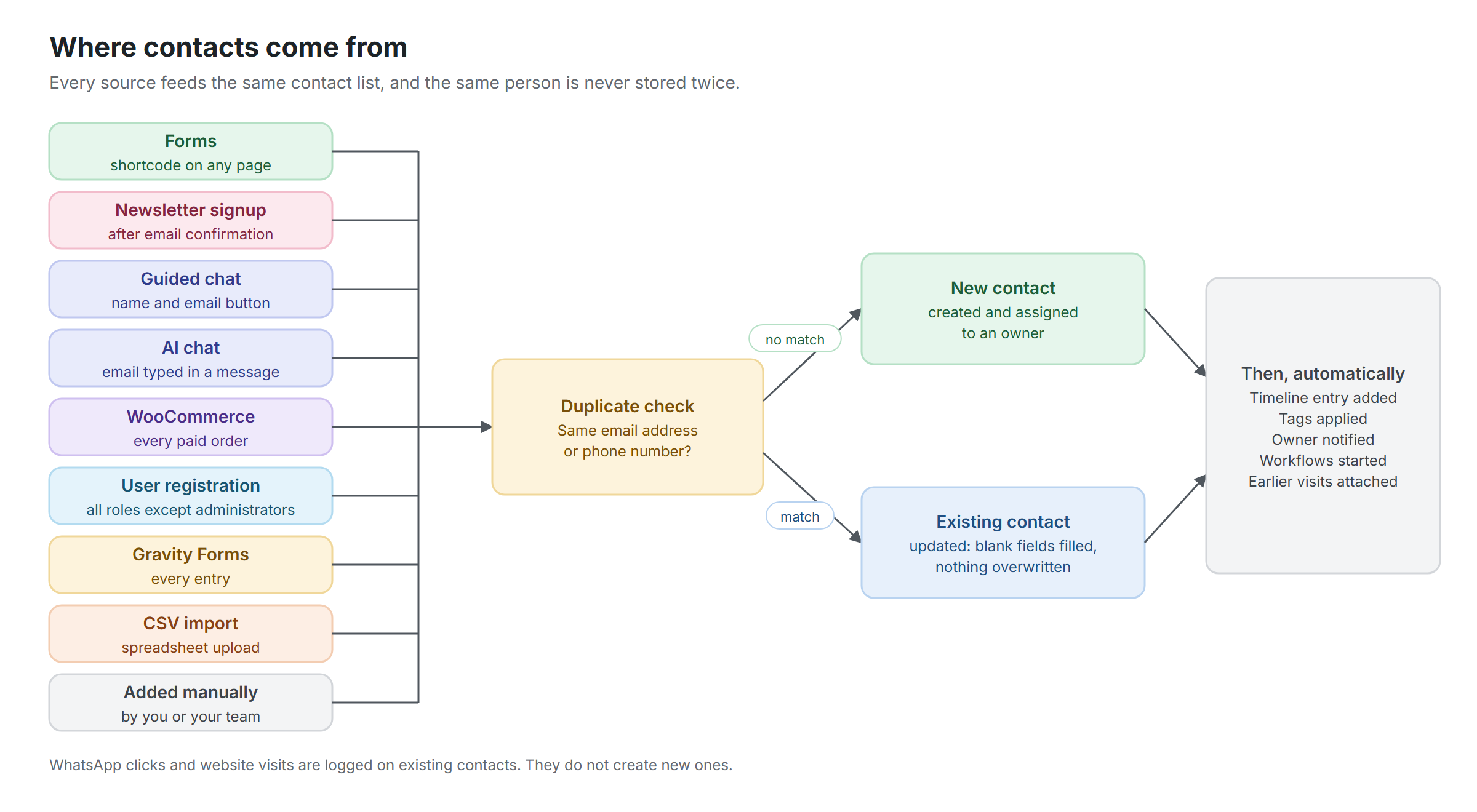
- Contacts are created automatically by forms, newsletter signups, chat conversations, WooCommerce orders, user registrations, Gravity Forms entries and imports, or manually with “Add Contact”.
- WooCommerce customers become contacts when an order reaches Processing or Completed, which is when payment has been received. New user registrations become contacts as well, except administrators. Both can be disabled under Settings, Contact capture.
- Duplicates are prevented: a contact with the same email address, or the same phone number, is updated rather than created again. Existing values are not overwritten.
- Statuses are Lead, Customer and Unsubscribed. Unsubscribed contacts do not receive any email from the plugin.
- The timeline records form submissions, emails, tag changes, notes, workflow steps, opportunity changes, tasks, visits and chat conversations.
- “Mark as replied” ends all workflows for that contact that have “Stop on reply” enabled.
Forms
Forms capture leads and create or update contacts. They are built in the admin and published with a shortcode.
Procedure
- Select “Add Form” or open an existing form. New forms start with name, email, phone and message fields.
- Add or reorder fields. For each field set the type, label, placeholder, help text, width and whether it is required.
- Set “Save as” for each field: a contact field, a custom field, or the submission only.
- Configure the success message or redirect URL, the notification email, the optional confirmation email and the tags to apply.
- Save, copy the shortcode, for example
[[acx_form id="1"]], and add it to a page or post.
Details
- Field types: short text, email address, phone number, number, date, paragraph text, dropdown, multiple choice and checkbox.
- Half-width fields are displayed side by side on wide screens and stacked on small screens.
- The notification email is sent to the addresses set on the form, or to the form owner, or to the notification address in Settings.
- The confirmation email is sent to the submitter as an HTML email with the header and signature from Settings. Merge tags are supported.
- Spam protection consists of a hidden honeypot field, a minimum completion time and a submission limit per visitor. Limits are configured under Settings.
- Forms can be duplicated from the list. The copy is inactive until it is activated. Inactive forms are not displayed.
- The script tag shown next to the shortcode is intended for theme templates and HTML blocks.
- When Gravity Forms is active, each of its entries also creates or updates a contact. This can be disabled under Settings.
Tags
Tags classify contacts, for example Hot lead, Webinar 2026 or Customer. A contact can have any number of tags.
Procedure
- Create tags under Tags.
- Apply tags from a form, a workflow step, the contact record, or in bulk from the contact list.
Details
- Tags can filter the contact list, define a newsletter audience, and trigger workflows through the “Tag added” trigger.
- Each user maintains a separate list of tags.
Email templates
A template is a reusable email. Templates are sent by workflows or manually from a contact record.
Procedure
- Select “Add Template”, then enter a name, subject and body.
- Insert merge tags where personal details should appear.
Details
- All emails are sent as HTML with a plain-text alternative. Plain paragraphs and links are formatted automatically.
- The header and signature defined in Settings are added to every email.
- Merge tags: {first_name}, {last_name}, {email}, {phone}, {site_name}, {owner_name}, {unsubscribe_url} and {cf:key} for custom fields.
- Links in emails carry a tracking parameter, so subsequent website visits by the recipient are attached to the contact.
- Replies are addressed to the owner of the contact.
Workflows
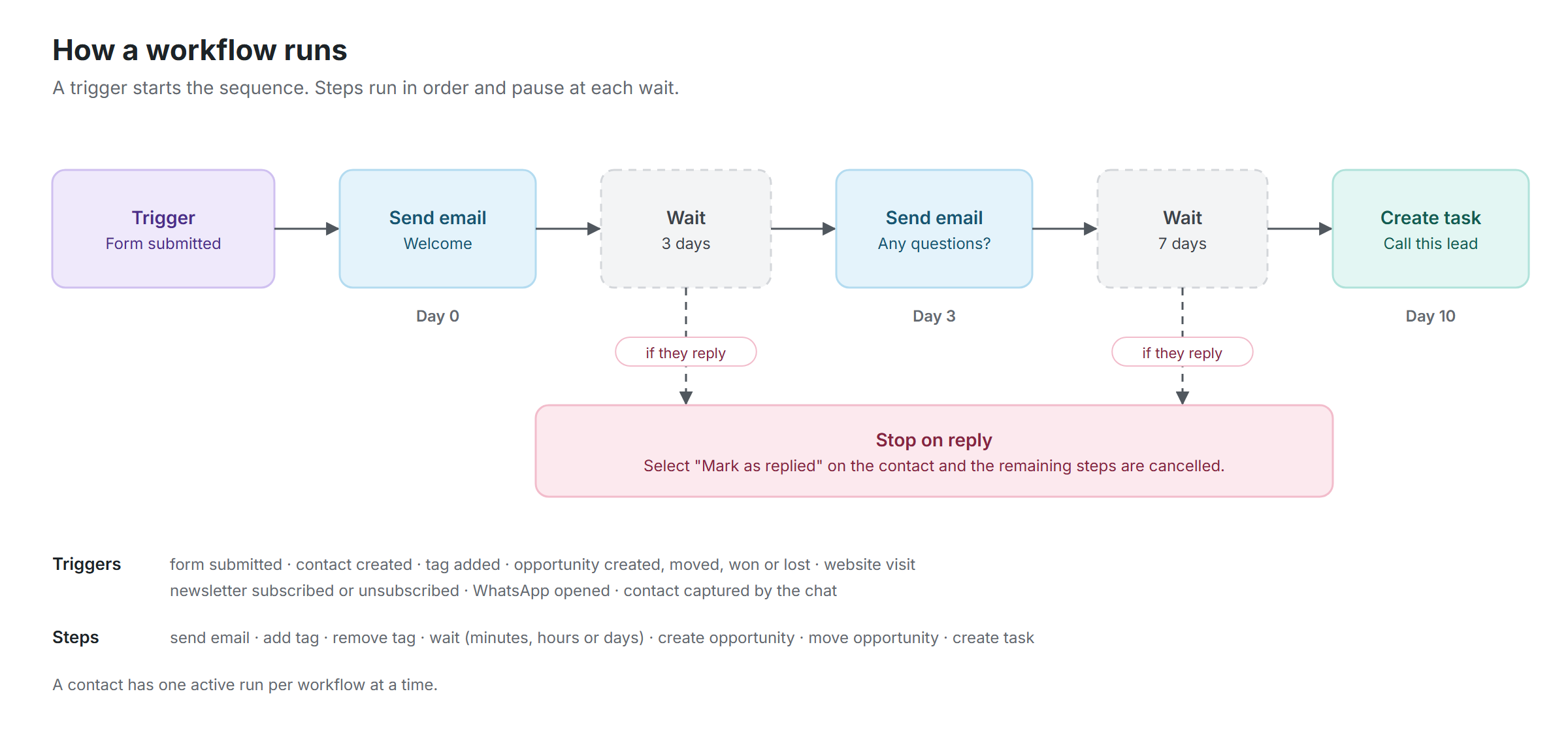
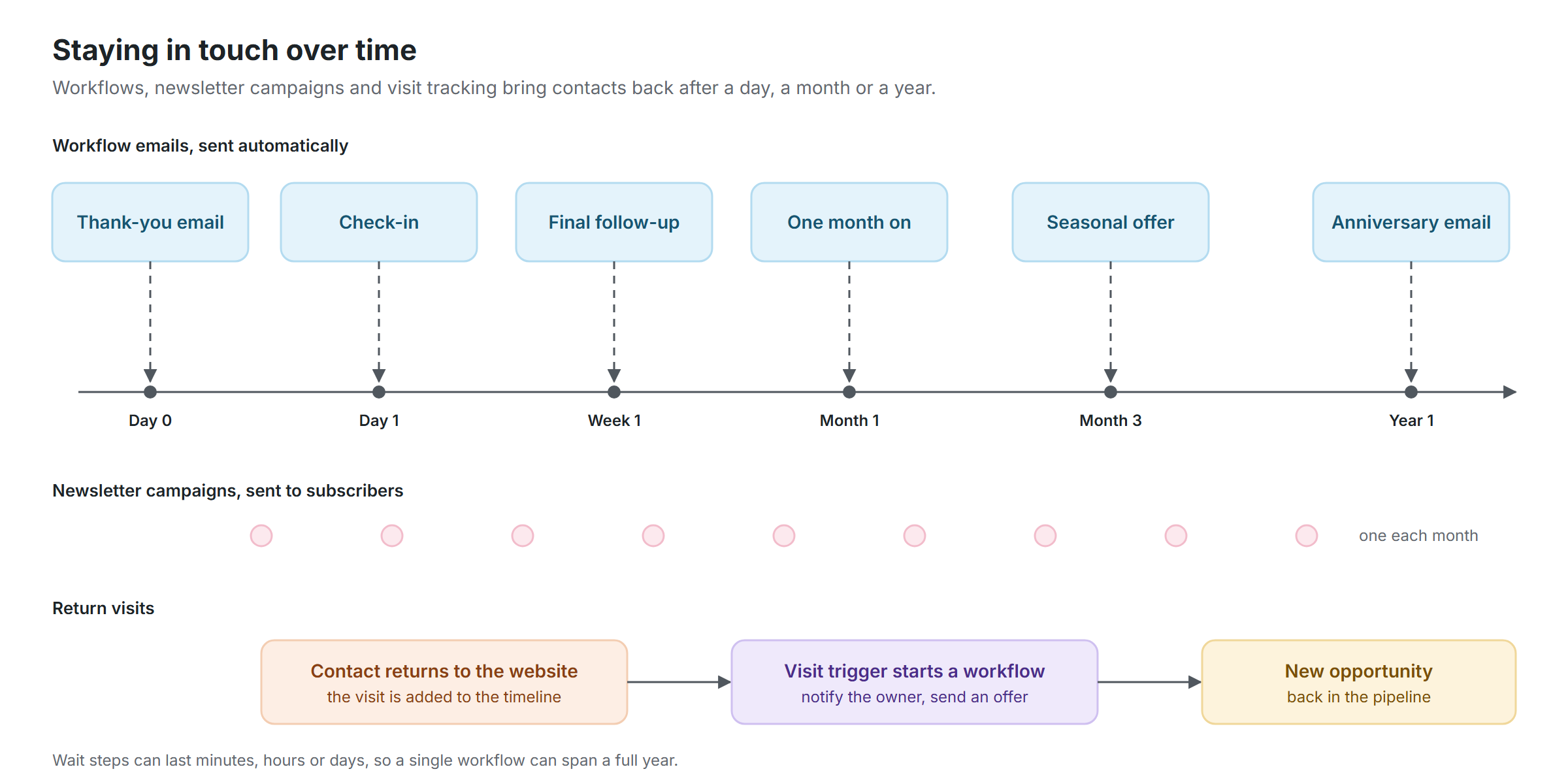
A workflow automates follow-up: when a trigger occurs for a contact, its steps run in order, with optional delays between them.
Procedure
- Select “Add Workflow” and choose a trigger.
- Add steps in the order they should run.
- Set the status to Active and save.
Details
- Triggers: form submitted, contact created, tag added, opportunity created, moved, won or lost, contact visited the website, newsletter subscription confirmed or cancelled, WhatsApp opened, contact captured by the chat, first paid WooCommerce order, and user registered.
- Example for WooCommerce: trigger “WooCommerce: first paid order”, wait 14 days, send an email asking for a review. The trigger fires once per customer, so repeat orders do not send the request again.
- Steps: send email, add tag, remove tag, wait (minutes, hours or days), create opportunity, move opportunity and create task.
- Example: send a welcome email, wait three days, send a follow-up, wait seven days, create a task to call the contact.
- A contact has only one active run per workflow. Runs can be reviewed and cancelled under Workflows, and started manually from a contact record.
- With “Stop on reply” enabled, selecting “Mark as replied” on the contact cancels the remaining steps.
- Wait steps depend on scheduled tasks. Their status is shown under Settings.
Pipelines and opportunities
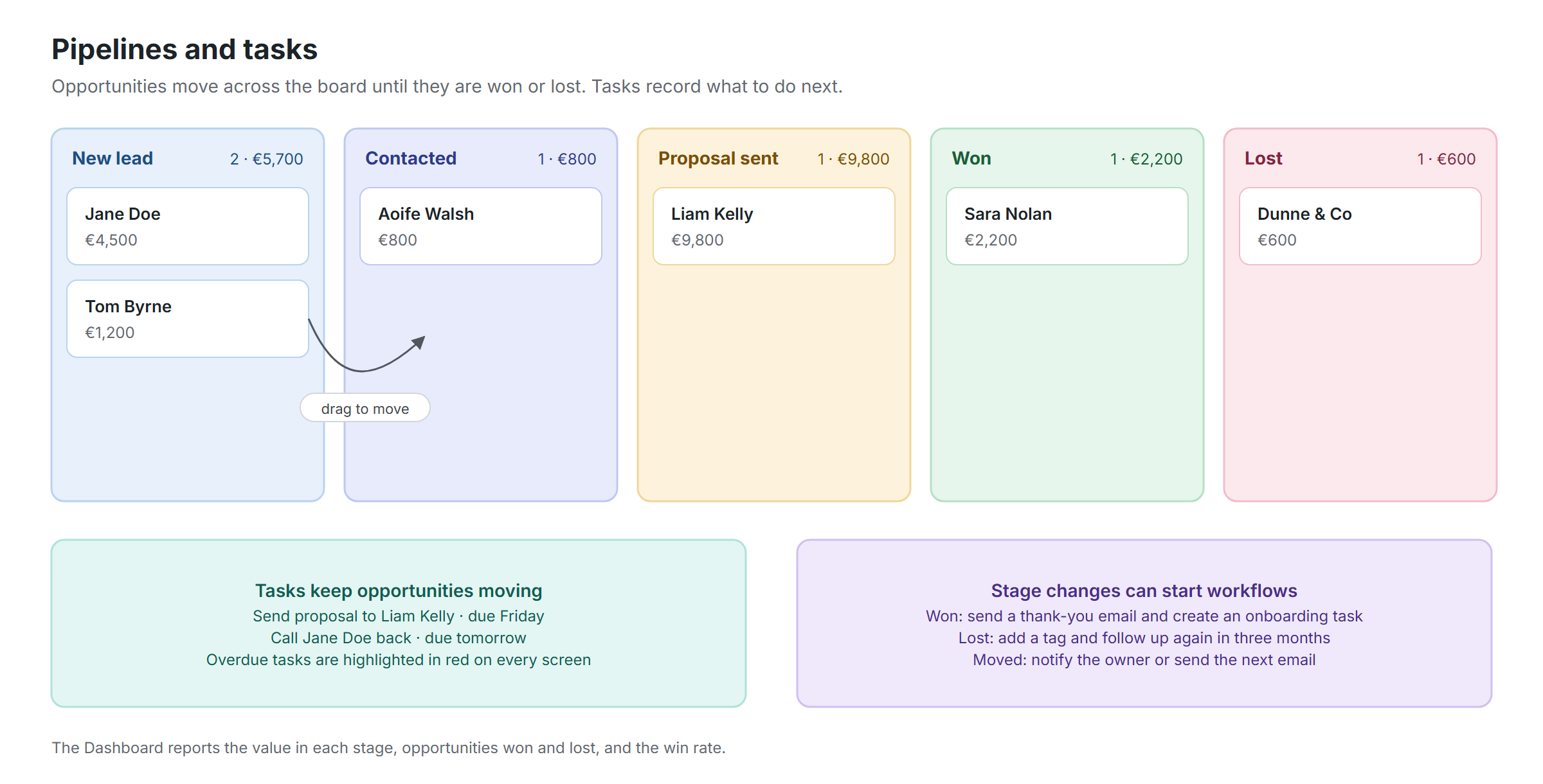
A pipeline represents a sales process as a board of stages. Opportunities move through the stages until they are won or lost.
Procedure
- Open Pipelines. Edit the “Sales” pipeline or create a new one, and define its stages.
- Create an opportunity from the board or from a contact record, with a value and an assignee.
- Drag opportunities between stages as they progress.
Details
- Each stage is of type Open, Won or Lost. Moving an opportunity to a Won or Lost stage closes it and records the outcome.
- Stage totals show the number and value of opportunities. The currency symbol is set under Settings.
- Creating, moving, winning and losing an opportunity can each trigger a workflow.
Tasks
Tasks are reminders linked to a contact, such as a call, a quote or a follow-up.
Procedure
- Add a task from a contact record or from Tasks, with a due date and an assignee.
- Mark tasks as complete when done. Completed tasks can be reopened.
Details
- Overdue tasks are highlighted on the Tasks screen, the contact record and the Dashboard.
- Workflows can create tasks automatically.
Newsletter
Collect subscribers with a signup form and send email campaigns from your own website.
Procedure
- Under Newsletter, Settings, choose the owner of new subscribers, the tag applied on confirmation, and the form and email texts.
- Add the
[[acx_subscribe]]shortcode to a page. - Under Campaigns, write a subject and message and choose the audience: all subscribers or one tag.
- Select “Send test to” to review the campaign, then “Send to subscribers”.
Details
- Double opt-in: new subscribers receive a confirmation email and are added only after following the link. This can be disabled in the newsletter settings.
- Campaigns are sent in batches by the scheduled queue. The batch size is configurable. Failed sends are retried up to three times.
- Every campaign email includes an unsubscribe link and the List-Unsubscribe headers used by email clients.
- Subscribers who unsubscribe are excluded from all further campaigns. The change is recorded on the contact timeline.
- Subscribing and unsubscribing can each trigger a workflow.
Chat: guided, AI and WhatsApp
The Chat screen provides three ways to engage visitors. Guided chat and AI chat share one widget, so only one can be enabled at a time. The WhatsApp button is independent.
Procedure
- Guided chat: select “Load an example”, adapt the steps, enable the chat and save.
- AI chat: choose a provider, enter its API key, describe your business, save, select “Test the connection” and enable the chat.
- WhatsApp: add a department for each number, enable the button and save.
- Optionally select “Create a follow-up sequence” to email every chat lead automatically.
Details
- Guided chat is a scripted conversation. Each step has a message and up to eight reply buttons. A button can lead to another step, open a page, request the visitor’s name and email, or hand over to the AI chat when an API key is saved.
- AI chat answers from the business information you provide and is instructed not to go beyond it. Supported providers include OpenRouter, OpenAI, Anthropic and Google Gemini. One API key is stored per provider.
- The reply language defaults to the site language. The assistant switches only when the visitor writes in another language.
- Guided chat, AI chat and the WhatsApp button can each open automatically after a set number of seconds. They do not reopen for visitors who have closed them.
- When a visitor provides an email address, a contact is created or updated with the transcript attached, and a notification email is sent to the owner.
- The follow-up sequence sends an email immediately, after one day and after one week, then creates a task. It can be edited under Workflows.
- WhatsApp numbers are entered in international format without spaces or the plus sign, for example 353861234567.
- All conversations are listed under Conversations. API keys are stored on the server and are never sent to the browser.
Visitor tracking
Tracking records which pages a contact viewed, before and after they were identified.
Procedure
- Tracking is enabled by default and can be disabled under Settings.
- Open Visits to review recent page views by identified contacts.
Details
- Visitors are anonymous until they submit a form, subscribe, leave their details in the chat, or follow a link in an email sent by the plugin. Earlier page views are then attached to the contact.
- Tracking stores page addresses, titles and referrers, and sets one first-party cookie. No keystrokes or form contents are recorded.
- Anonymous visitors are deleted after 90 days and page views after 365 days. Both periods are configurable.
- Logged-in users with access to Active Contacts are not tracked.
Import and export
Contacts can be imported from and exported to CSV files.
Procedure
- Import: upload a CSV file with a header row, map each column to a field, and choose whether existing contacts are updated or skipped.
- Export: filter or select contacts in the list and choose “Export CSV”.
- Merge: open a contact, enter the email address or ID of the duplicate in the Merge box, and confirm.
Details
- A column containing comma-separated tags creates the tags as required.
- Exports include all contact fields, custom fields, tags and the owner.
- Merging moves notes, tags, tasks, opportunities, submissions and history to the remaining contact.
Users and permissions
Any user who can edit posts (Author, Editor, Administrator) can use Active Contacts.
Details
- Users see only the contacts, forms, tags, templates, workflows, pipelines and campaigns they own. Administrators see all records, with an Owner column.
- Settings, the chat configuration and the newsletter settings are available to administrators only.
- Contacts created by the newsletter form and the chat are assigned to the owner selected in their settings. Contacts captured from WooCommerce orders, user registrations and Gravity Forms are assigned to the owner selected under Settings, Contact capture.
Settings, updates and uninstalling
Settings apply to the whole website and are available to administrators.
Details
- General: notification address, currency symbol and rows per page.
- Emails: header and signature added to every email. An SMTP plugin is recommended for reliable delivery.
- Custom contact fields: additional fields available on every contact and as mapping targets in forms.
- Scheduled tasks: workflow delays and newsletter batches run every minute. If the status is Delayed, ask your hosting provider to add the cron command shown.
- Updates are delivered through the standard Plugins screen.
- Deactivating the plugin keeps all data. Deleting the plugin removes its data only when “Remove data on uninstall” is enabled.
Shortcodes
[[acx_form id="1"]]displays a form. The ID is shown on the form screen next to the shortcode.[[acx_subscribe]]displays the newsletter signup form.- The chat widget, the WhatsApp button and visitor tracking require no shortcode. Once enabled, they are added to every public page.
Merge tags
Merge tags are replaced with the contact’s details when an email is sent. They can be used in templates, confirmation emails, campaigns, and the email header and signature.
{first_name}— First name{last_name}— Last name{email}— Email{phone}— Phone{site_name}— Site name{owner_name}— Contact owner name{unsubscribe_url}— Newsletter unsubscribe link{cf:company}— Company{cf:key}— any custom contact field, using its key
Form notification emails also support {all_fields}, {contact_url}, {form_title} and any field key, for example {message}.
Data and privacy
- All records are stored in dedicated tables in the website database. No data is sent to the plugin author.
- The AI chat sends the conversation and your business information to the AI provider you select. No other feature contacts an external service, apart from the icon font used by the chat widgets and the update check.
- Visitor tracking sets one first-party cookie,
acx_vid, valid for one year. It should be listed in your cookie policy. - Form submissions store the IP address, browser and page address of the submitter.
- Anonymous visitors and page views are deleted automatically after the retention periods set under Settings.
- Deleting a contact removes its fields, tags, notes, submissions, tasks, opportunities, visits, conversations and history.
- Deactivating the plugin keeps all data. Deleting the plugin removes its data only when “Remove data on uninstall” is enabled.
Frequently asked questions
Does Active Contacts require an external service or subscription?
No. All data is stored in your website’s database. The only optional external service is an AI provider for the AI chat.
Does it work with both WordPress and ClassicPress?
Yes. It is tested on ClassicPress 2 and current versions of WordPress, and requires PHP 8.1 or later.
How do I add a form to a page?
Copy the shortcode from the form screen, for example [[acx_form id="1"]], and add it to the page content. The form must be active.
Why is my form not displayed?
Check that the form status is Active and that the shortcode contains the correct ID. A security plugin that blocks public access to the REST API also prevents forms from loading.
Why are emails not being delivered?
Emails are sent through the site mailer. Configure an SMTP plugin with your email provider and check the contact timeline for “Email failed” entries, which include the reason.
Why did a workflow not continue after a wait step?
Wait steps are resumed by scheduled tasks. If Settings reports them as delayed, ask your hosting provider to run the cron command shown there every minute.
Can a contact enter the same workflow twice?
Not at the same time. A contact has one active run per workflow. Once the run has completed or been cancelled, the workflow can start again.
How are duplicate contacts handled?
New submissions are matched by email address, then by phone number. A match updates the existing contact and only fills empty fields. Existing duplicates can be merged from the contact record.
Does it work with WooCommerce?
Yes. Customers become contacts when an order is paid, that is when it reaches Processing or Completed. The trigger “WooCommerce: first paid order” starts a workflow once per customer, for example to request a review two weeks after the purchase. Order details are not copied.
Are registered users added as contacts?
Yes. Every new user registration creates or updates a contact, except administrators, and can start a workflow through the “User registered” trigger. Users who registered before the plugin was installed are not added.
Can I use Gravity Forms instead of the built-in forms?
Yes. When Gravity Forms is active, every entry creates or updates a contact. Name, email and phone fields are detected automatically, and other fields are saved when their label matches a custom contact field.
What is the difference between guided chat and AI chat?
Guided chat follows a script you write and offers reply buttons; it requires no AI provider. AI chat answers free-form questions using the business information you provide and requires an API key.
Can I use AI chat without paying?
OpenRouter offers free models. Leave the model field empty to use its free router. Free models have daily limits and vary in quality.
Why did the AI chat answer in the wrong language or give incorrect information?
Set the reply language, keep the business information concise and specific, and consider a more capable model. The guided chat is an alternative when answers must be fully controlled.
Are API keys secure?
Keys are stored in the website database, used only by the server, and never included in pages or sent to visitors.
Am I notified when a visitor leaves their details in the chat?
Yes. The owner selected on the chat tab receives an email with the visitor’s details and the conversation. This can be disabled per chat.
How does newsletter confirmation work?
Subscribers receive an email with a confirmation link and are added once they follow it. Every campaign includes an unsubscribe link.
How many newsletter emails are sent at once?
Campaigns are sent in batches, 20 emails per minute by default. The batch size is set in the newsletter settings.
What does visitor tracking record?
Page addresses, titles and referrers, linked to a first-party cookie. Visitors remain anonymous until they identify themselves. Tracking can be disabled under Settings.
Who can access Active Contacts?
Users who can edit posts. Each user sees their own records; administrators see all records and manage the settings.
How do I update the plugin?
Updates appear on the Plugins screen and are installed in the same way as any other plugin update.
What happens to my data if I deactivate or delete the plugin?
Deactivating keeps all data. Deleting keeps all data unless “Remove data on uninstall” is enabled under Settings, in which case all contacts, forms, workflows, conversations, newsletter data, import files and settings are removed permanently.
Can deleted records be restored?
No. Deleted contacts, forms and workflows cannot be recovered. Export contacts regularly as a backup.