
This is the first post in a new series. The idea is simple: I build WordPress plugins, and I also look after a lot of client websites, so I keep running into real problems. Sometimes the fix ends up being one of my own plugins. I want to write those stories down, honestly, including the bits that didn’t go perfectly.
First up: how I moved more than 400 client WordPress sites off ManageWP and onto Volt, the site management module inside my Lighthouse plugin.
Why I left ManageWP
I want to be fair here. ManageWP is a decent tool, and I was using the free version. For a lot of people it does exactly what they need.
It stopped being a good fit for me for two reasons.
The first one was updates. The update process would freeze often. With a handful of sites that’s a small annoyance. With 400+ sites it means sitting there wondering which sites finished, which ones didn’t, and whether I need to go back and check them one by one. That’s the opposite of what a management dashboard is for.
The second reason was detail. I wanted to see more about each site at a glance: the PHP version, the MySQL version and a few other things. When you look after hundreds of sites, knowing which ones are on an old PHP version is just as important as knowing which plugins need updating.
So in the summer of 2026, around July and August, I decided to stop working around the problem and move everything to my own tool.
Two plugins: Volt and IO
The setup has two parts.
Volt is the parent. It’s a module inside Lighthouse, so you switch it on from the Lighthouse Modules screen, and it runs on the one WordPress site I use as my dashboard.
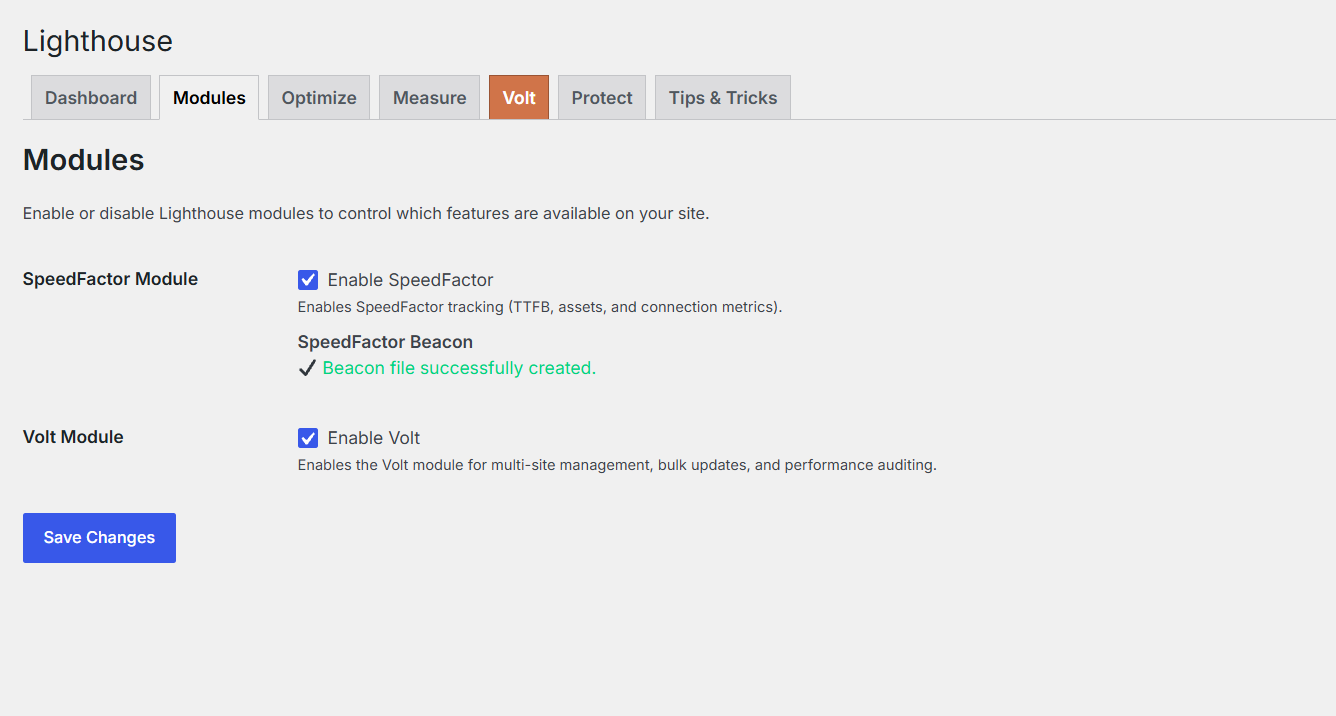
Volt is switched on from the Lighthouse Modules tab.
IO is the child, or “satellite”, plugin. It goes on every site I want to manage. It’s small: it reports information about the site, and it runs updates when Volt asks it to.
In Volt, every website is a post in a custom post type. Each one has three fields: the site URL, the IO API key for that site, and the CMS (WordPress, ClassicPress, or “Other”). “Other” is handy for the odd non-WordPress site I still want on the list. It shows up as a note, without monitoring, and it’s left out of bulk updates.
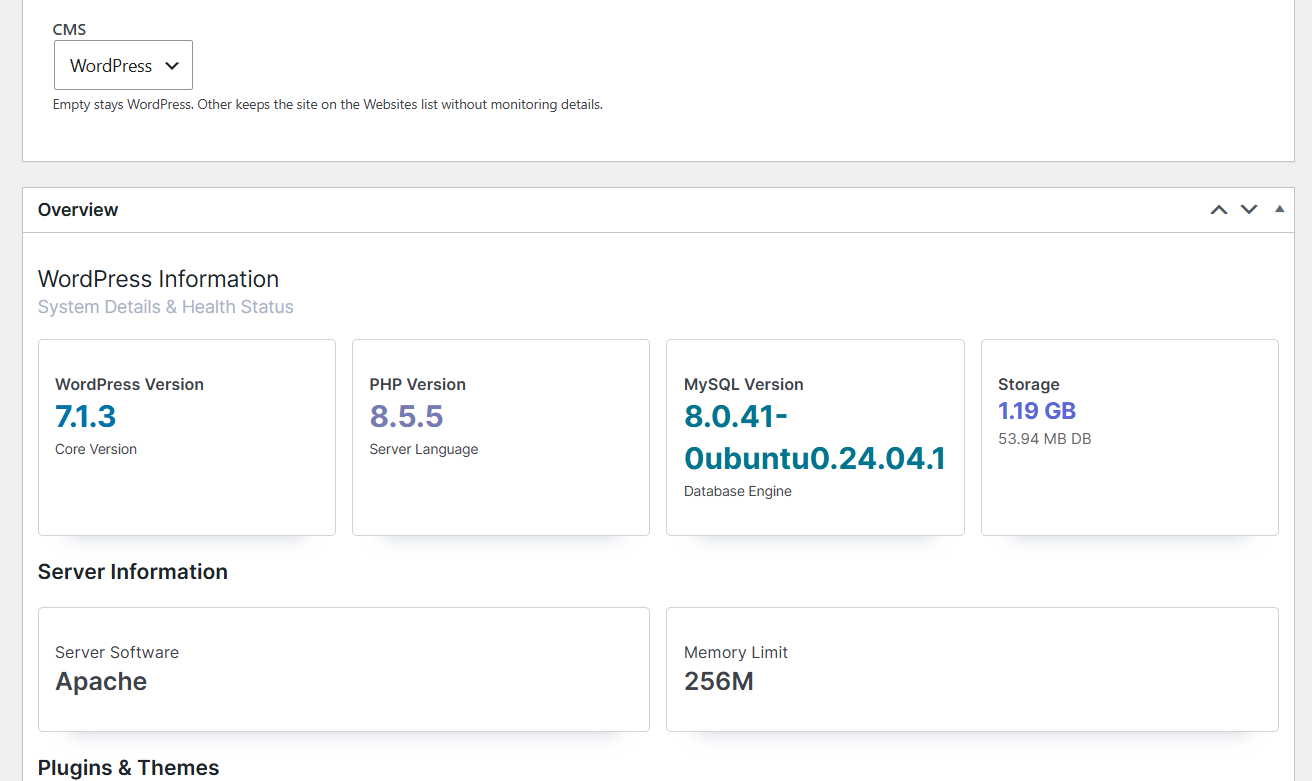
Each website in Volt is its own entry, with a CMS field and an overview built from the IO data.
The migration: one day of work
The move itself took one day. Here’s what I did:
- Installed IO on every site.
- Generated an API key on each site. IO has its own settings page under Settings → IO Settings, with a button that generates a new key.
- Added the sites to Volt. On the Plesk server I used the Bulk Add Websites screen, and on the other server I added them manually, one website entry per site, with its URL and key.
The installs were the biggest job. My sites are split roughly 50/50 across two servers. On one server, I installed IO manually. On the other, I used Plesk to install it automatically across all the sites. It was a lot of work, but it’s the kind of work you only do once.
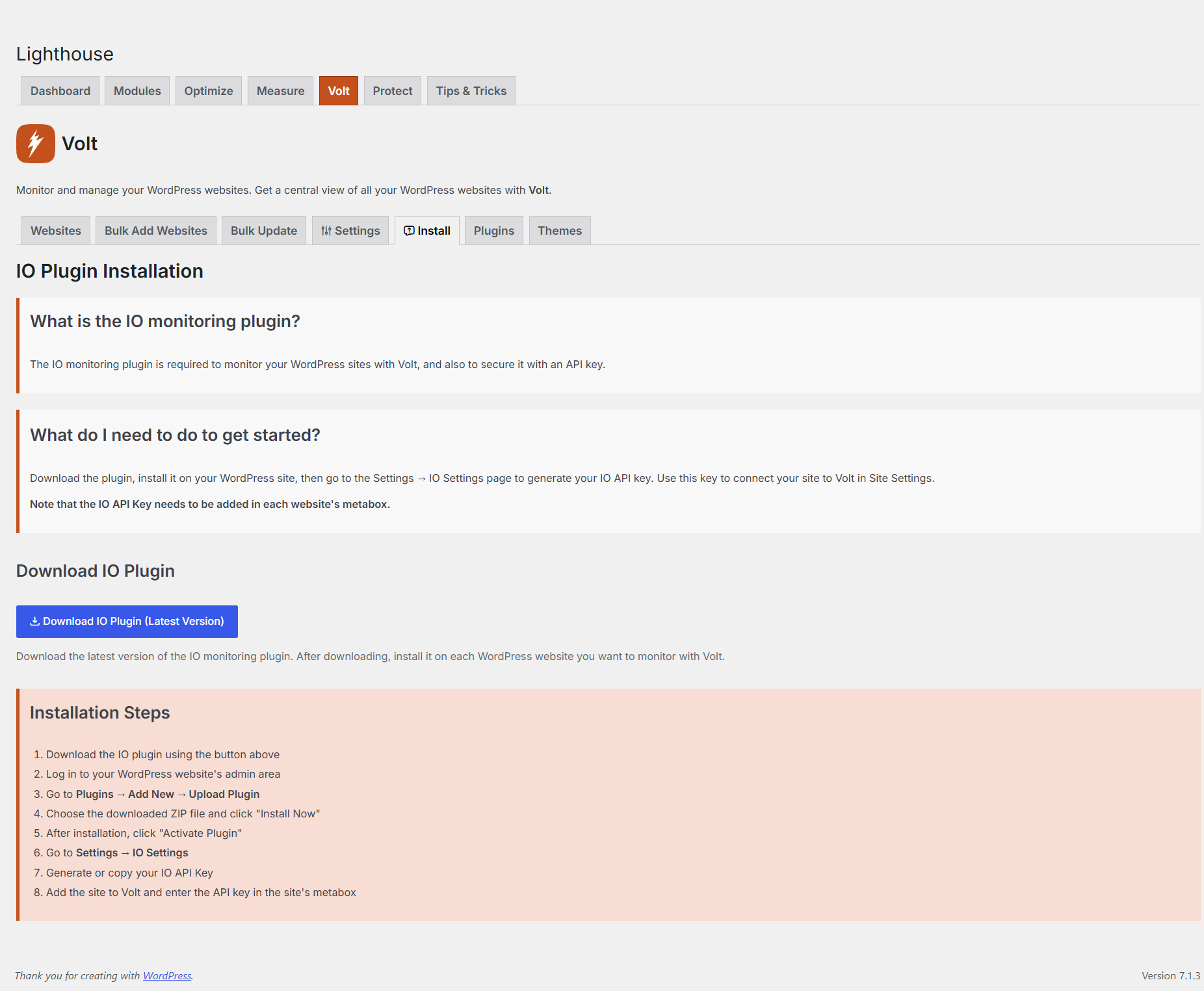
The Install tab in Volt, where you download IO and follow the setup steps.
On the Plesk server, I ran an SQL query to get all the domains, and pasted the list into Volt’s Bulk Add Websites screen. It takes one site per line, either just the URL or the URL and the API key separated by a pipe character. It skips duplicates, and it skips anything that isn’t HTTPS, because Volt needs every site to have a valid SSL certificate. The other server has no management platform, so there I added the sites manually.
I stopped using ManageWP straight away, the same day. Removing the ManageWP worker plugin from every site took longer. I did that slowly, over two to three months.
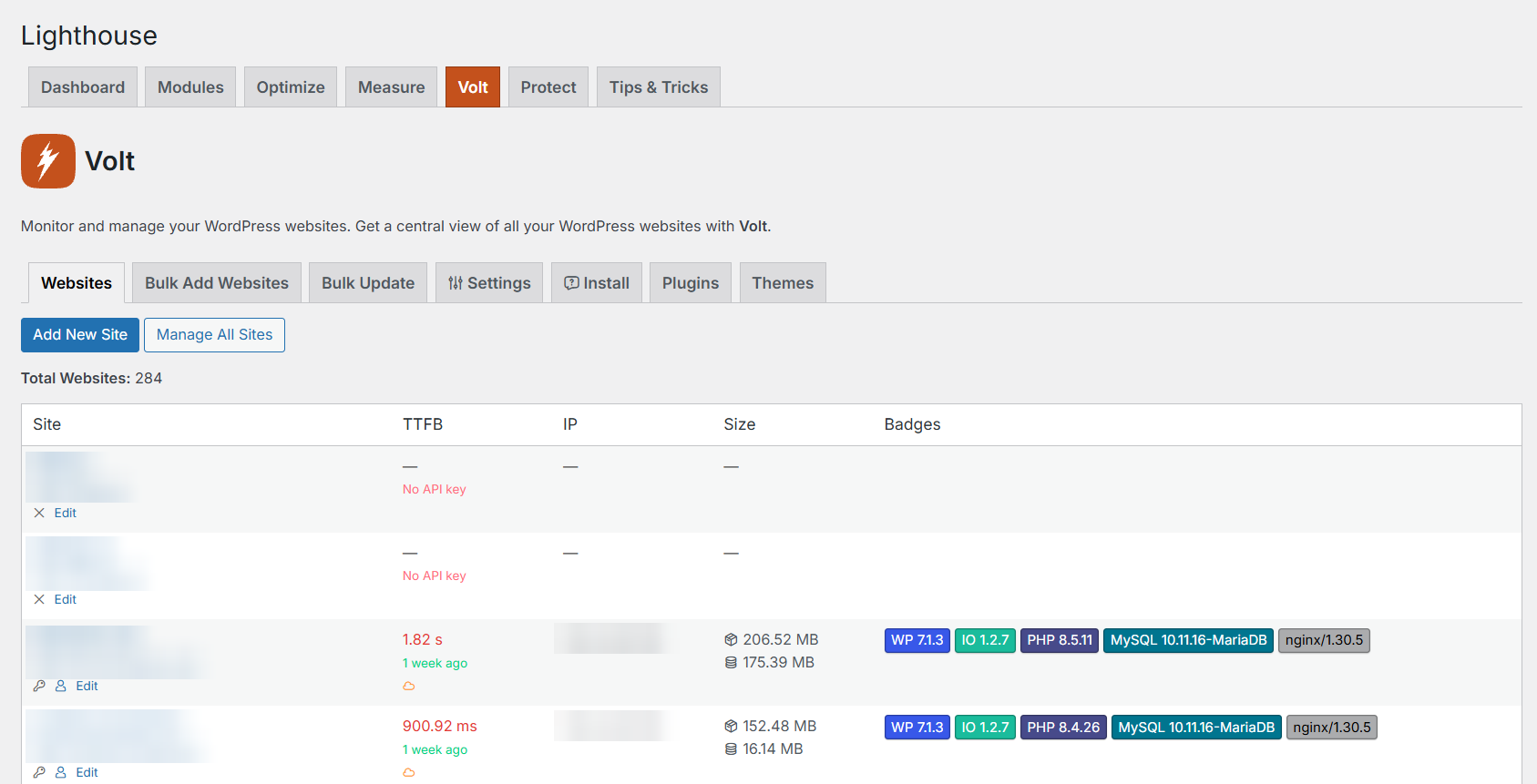
A Volt install I run for a friend: 284 sites, on an internal ClassicPress instance locked down with IP whitelisting. Site names and IP addresses are blurred.
How it works under the hood
For the developers reading this, here’s what’s actually going on. No magic, just the WordPress REST API.
Authentication. IO adds a few REST API endpoints to the child site: one for monitoring data, one to trigger updates, and a simple test endpoint. All of them require the site’s API key, which is a random 32-character string IO generates and stores on that site. If no key has been set, IO refuses every request. Volt sends the key with each request. There are no shared passwords and no admin logins passed around.
What IO reports. When Volt asks for monitoring data, IO collects a snapshot of the site, including:
- WordPress version (or ClassicPress version), PHP version and MySQL version
- server software, PHP memory limit, max execution time, upload and post size limits
- pending plugin, theme, core and translation updates, with current and new version numbers
- debug settings, SSL, multisite and permalink status
- a few security flags: whether file editing is disabled, whether XML-RPC is on, and whether user registration is open
- post, user and comment counts
- disk size of the WordPress install and database size
- whether the site seems to be behind Cloudflare
IO also runs an hourly self speed test. It requests its own homepage with cURL and stores the timings, including Time to First Byte, with a breakdown of DNS, connection, TLS, server processing and download. Volt shows that TTFB on the sites list, colour-coded, so slow sites stand out.
Caching. Volt saves the latest snapshot for each site as a JSON file on the parent site. The dashboard reads from those files, so opening Volt doesn’t make 400 remote requests. Fresh data is fetched when I press Recheck Updates. That’s on demand, not on a schedule.
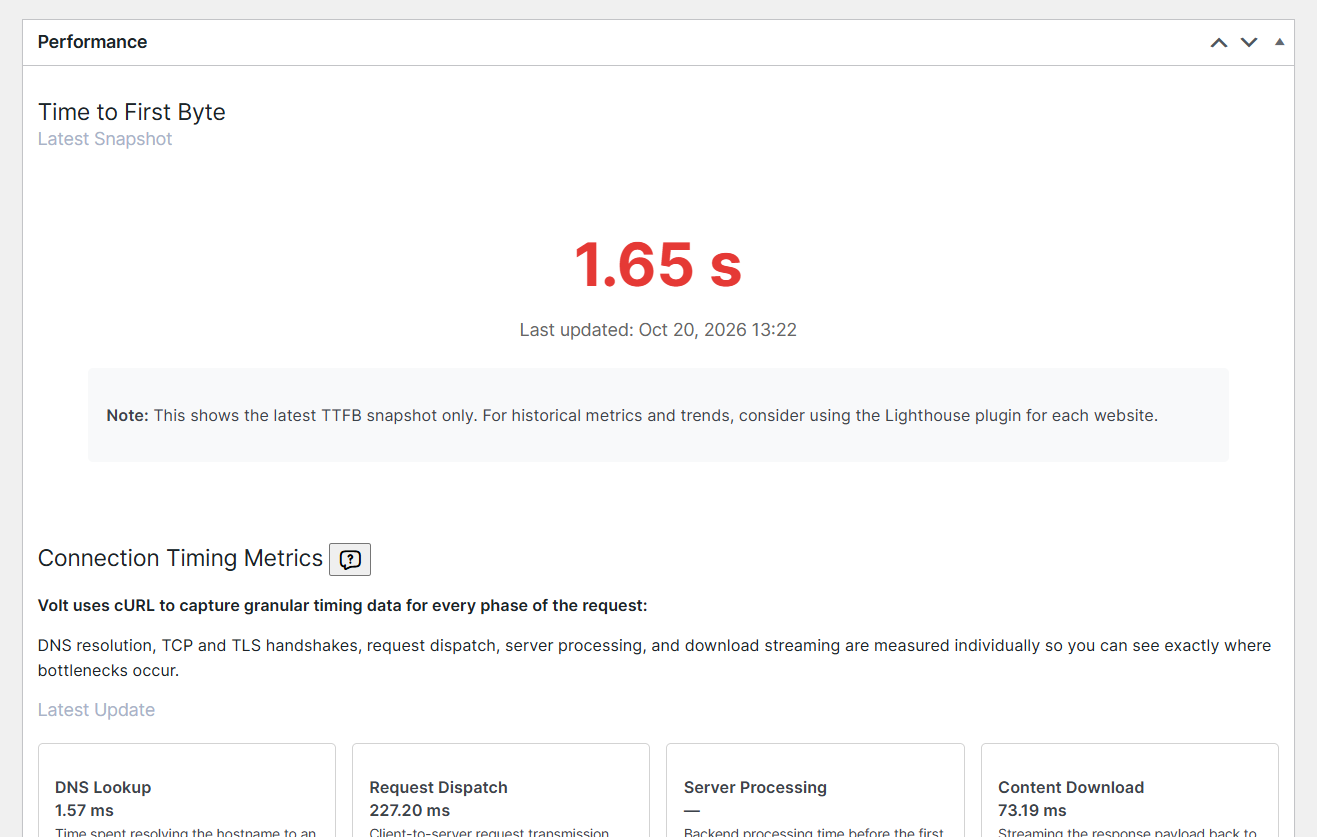
The latest TTFB snapshot for one site, with the cURL timing breakdown from IO.
Bulk updates. On the Bulk Update screen, I tick the sites I want, choose what to update (plugins, themes, core, or all), and start. Volt sends the update request to all selected sites in parallel, with a timeout on each one, so a dead or slow site fails on its own instead of holding up the rest. On each child site, IO runs the updates through WordPress’s own upgrader classes. Before updating plugins, it remembers which ones were active and reactivates any that ended up deactivated. When the run finishes, Volt shows a summary, lists each failed site with its error message, and then refreshes the data for the sites it just updated.
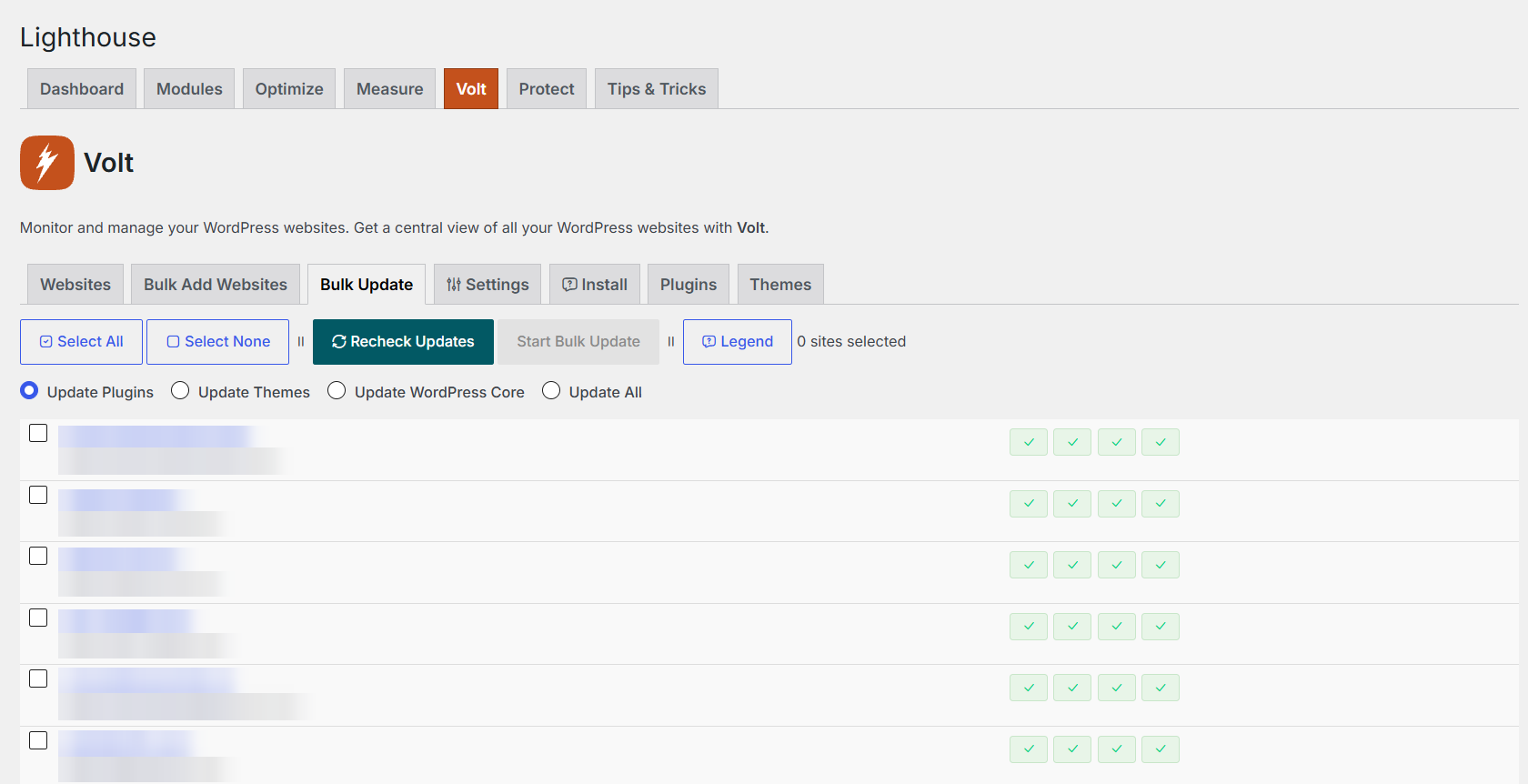
The Bulk Update screen: pick the sites, pick what to update, and start.
Weekly report. Volt can also send a weekly email with pending plugin, theme and core updates, plus each site’s latest TTFB. I don’t use it myself, but it’s there if you want it.
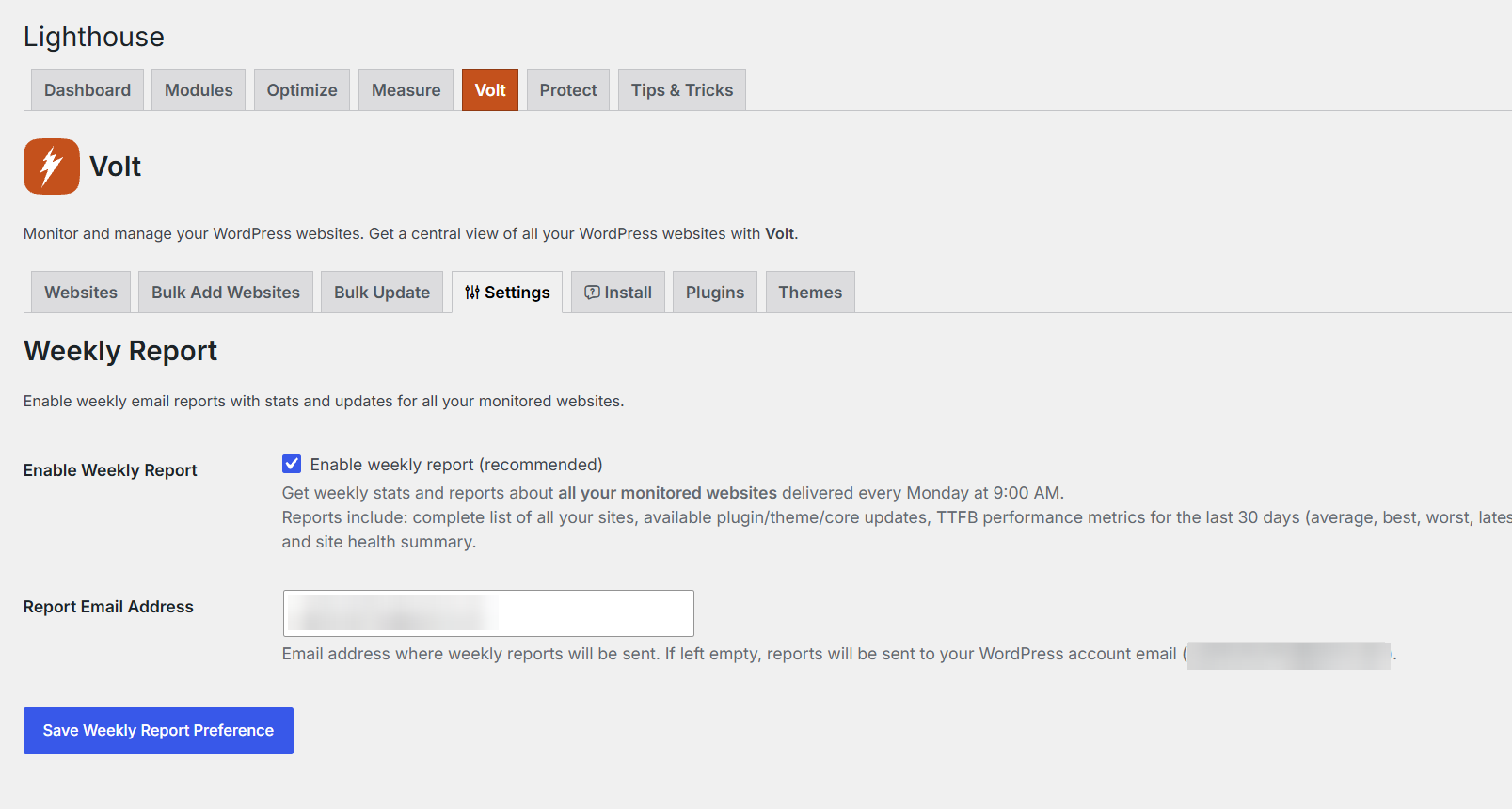
The Weekly Report settings in Volt.
How I run updates now
There’s one thing IO shows me that I didn’t pay much attention to before: max execution time. If a site has a low limit, a big update can get cut off halfway, because PHP stops the script before it’s done.
That’s why I always update in batches, in this order:
- plugins
- then the theme or themes
- then WordPress core, if there’s an update
- then Update All at the end, which picks up the translations
Smaller batches mean each request does less work, so a low execution limit is much less likely to cause trouble. It also makes it easier to see what went wrong if something does fail.
What broke
Nothing, really.
There’s one site that fails to update every single time. It’s a server permission issue on that site, and I’m too lazy to fix it. So every time I run a bulk update, Volt politely reminds me in the results. One day.
Apart from that, the move was boring, which is exactly what you want from a migration.
What I gained (and what I didn’t)
I saved time and stress. Updates run without me babysitting them, and when something fails, I can see which site failed and why. I also get the details I wanted from the start: PHP version, MySQL version, server software, limits, disk and database size, and TTFB, for every site, in one list.
I didn’t save any money. I was on ManageWP’s free version, so there was nothing to cancel. If you’re hoping this story ends with a big saving, it doesn’t. The win was control and visibility, not cost.
The other benefit is that it’s my own code. When I want to see something new, I can add it. Volt even has a Custom Badges setting, where I can turn any field from the IO data into a badge on the sites list.
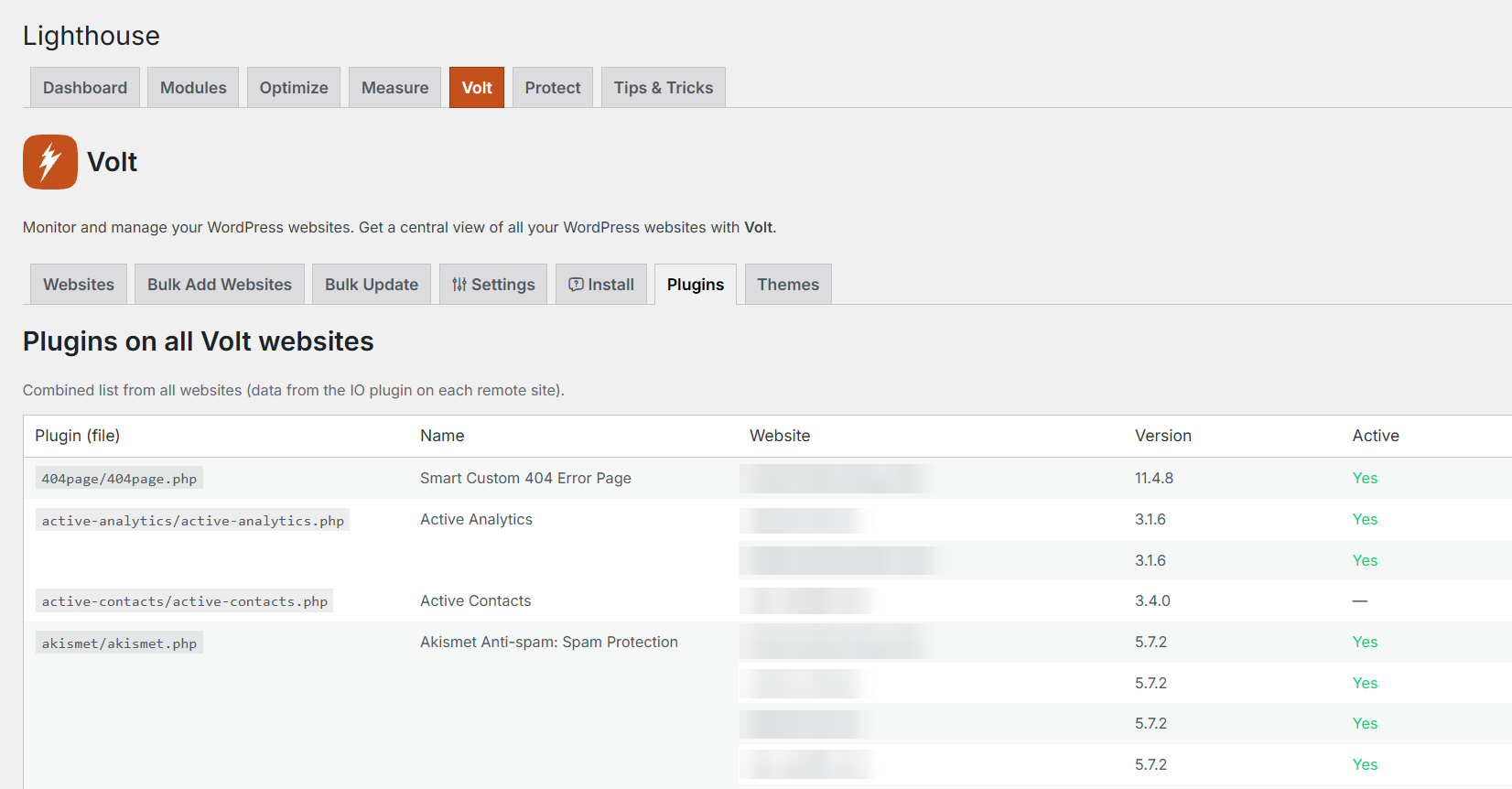
The Plugins tab combines the plugin list from every site into one table.
Should you do the same?
If ManageWP works for you, keep using it. Seriously. It’s a good free tool.
But if you look after a lot of WordPress sites, your updates keep stalling, or you want to see PHP and MySQL versions and server limits for every site in one place, have a look at Volt. It’s included in Lighthouse, along with the performance and security features Lighthouse already has. IO is the companion plugin you install on each site.
In the next post in this series, I’ll write about another real problem and how I fixed it with one of my plugins. If you have questions about moving your own sites to Volt, get in touch.