Your whole site, in one file, moved from your dashboard
LazyClone copies a complete WordPress site — pages, posts, images, theme, plugins and settings — from one WordPress install to another. You do it from the WordPress dashboard on both sites. No FTP program, no cPanel, no migration service, nothing to install on your computer.
Export on one site. Import on the other. Log in. Done.
No FTP
No migration service
Links fixed automatically
Previous versions kept
Why people copy a site
LazyClone was made for the loop where you copy a live site to a working copy, change it, and send the result back. Every step that usually goes wrong in that loop — broken images, links pointing at the old address, a site that will not load after the move — is handled for you.
01
Try changes safely
Copy your live site to a test site, so you can try a redesign, a new plugin or a big content change without visitors seeing it.
02
Push the result back
When the new version is ready, copy it back to the live site in one upload. Nothing to rebuild by hand.
03
Move or hand over
Move to a new host, deliver a finished site to a client’s hosting, or keep a spare copy of a site you would hate to lose.
How it works
📦 Export
On the site you want to copy
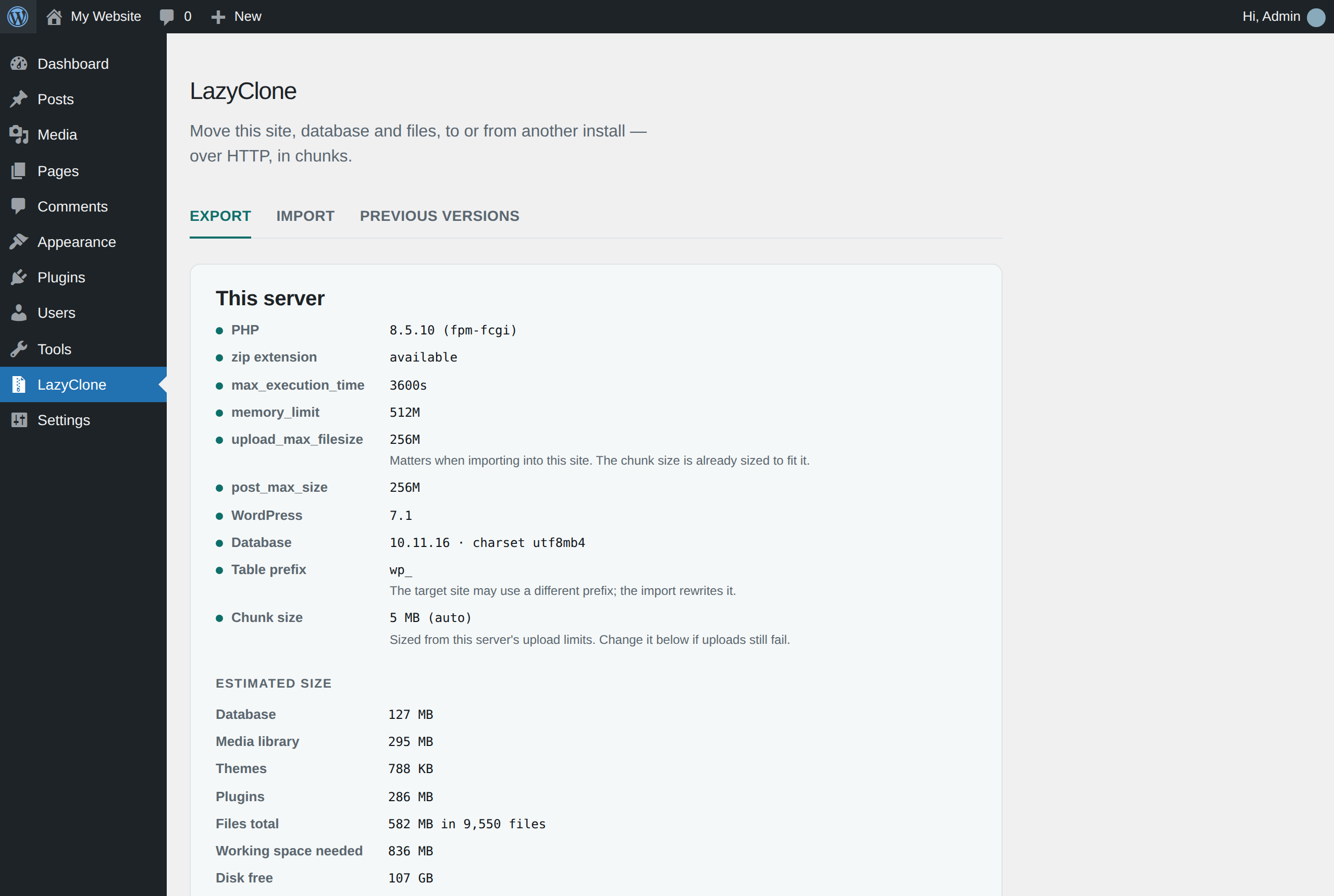
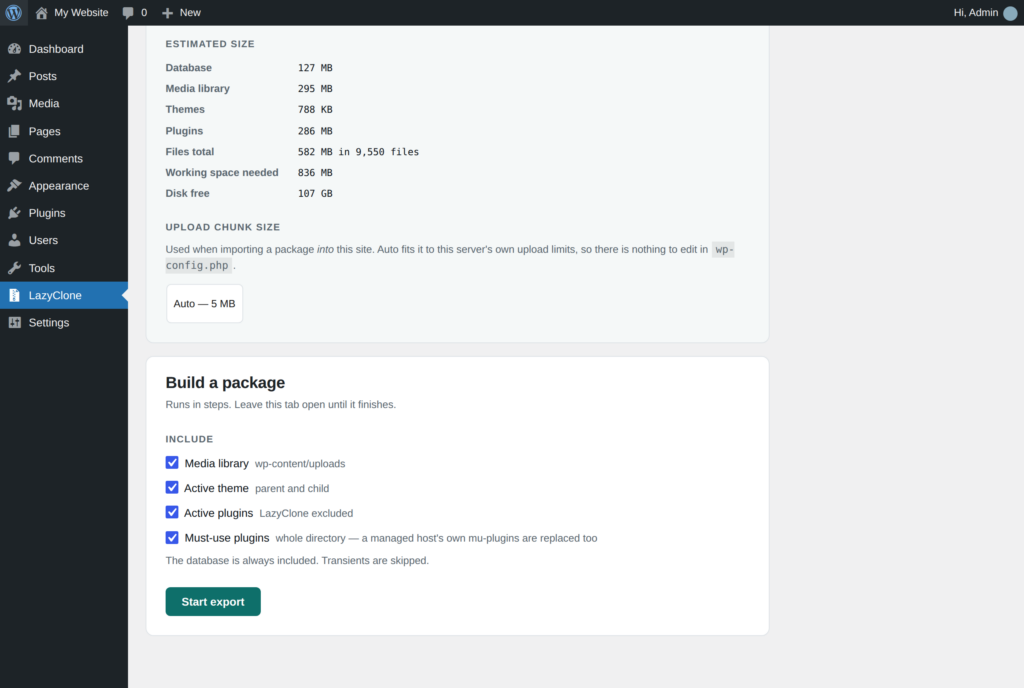
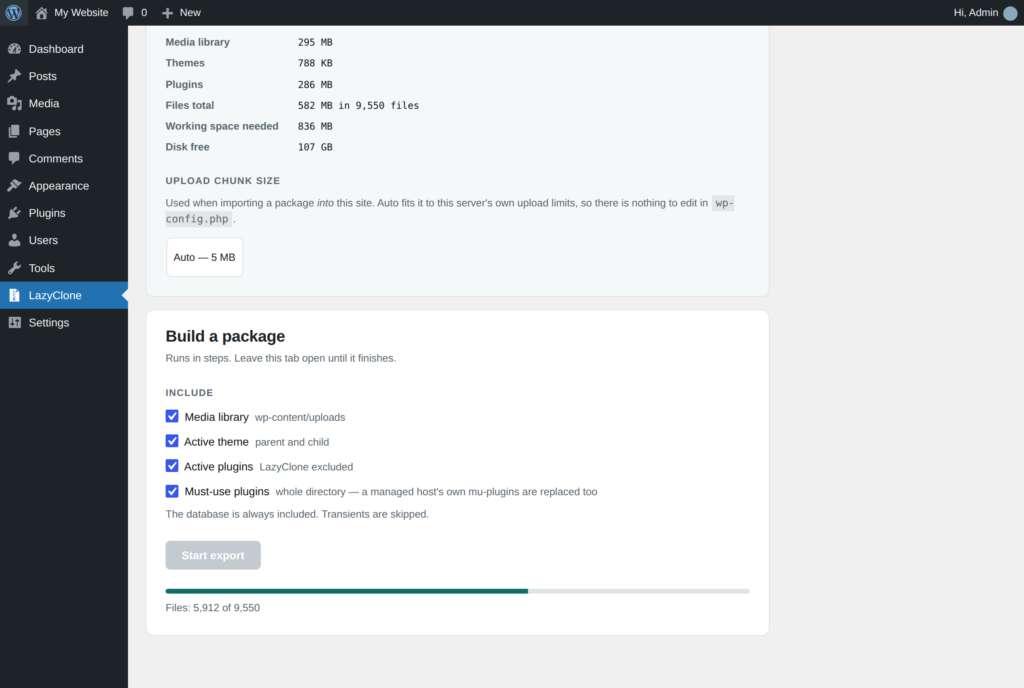
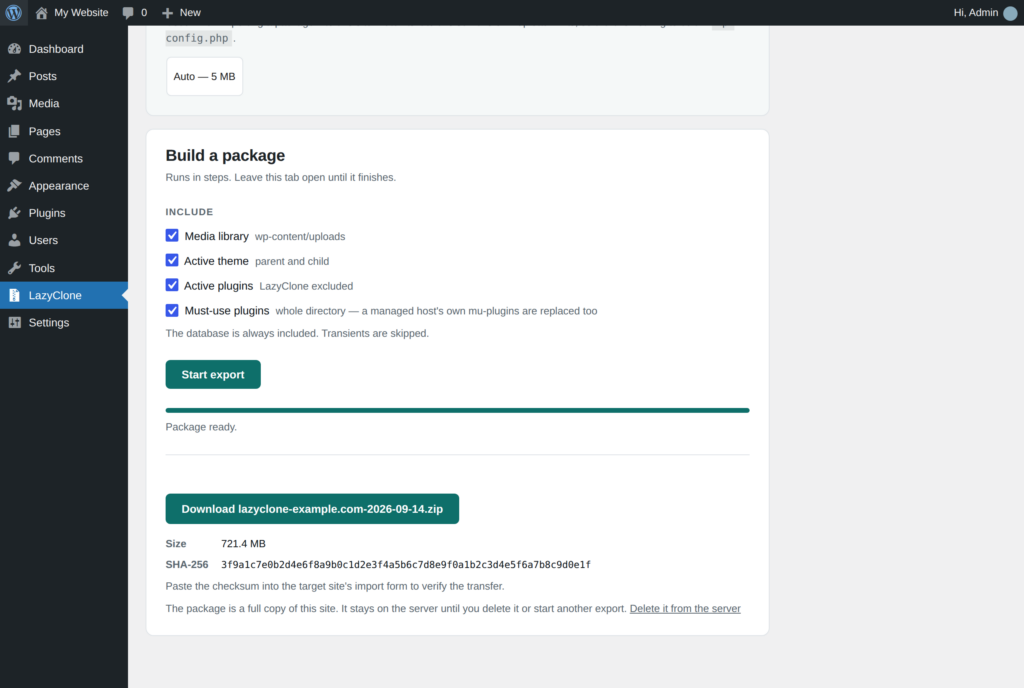
Open LazyClone → Export, tick what to include (your media library, theme and plugins are ticked already) and press Start export. A progress bar runs while your site is packed into one file. When it finishes, download the file.
📥 Import
On the site that becomes the copy
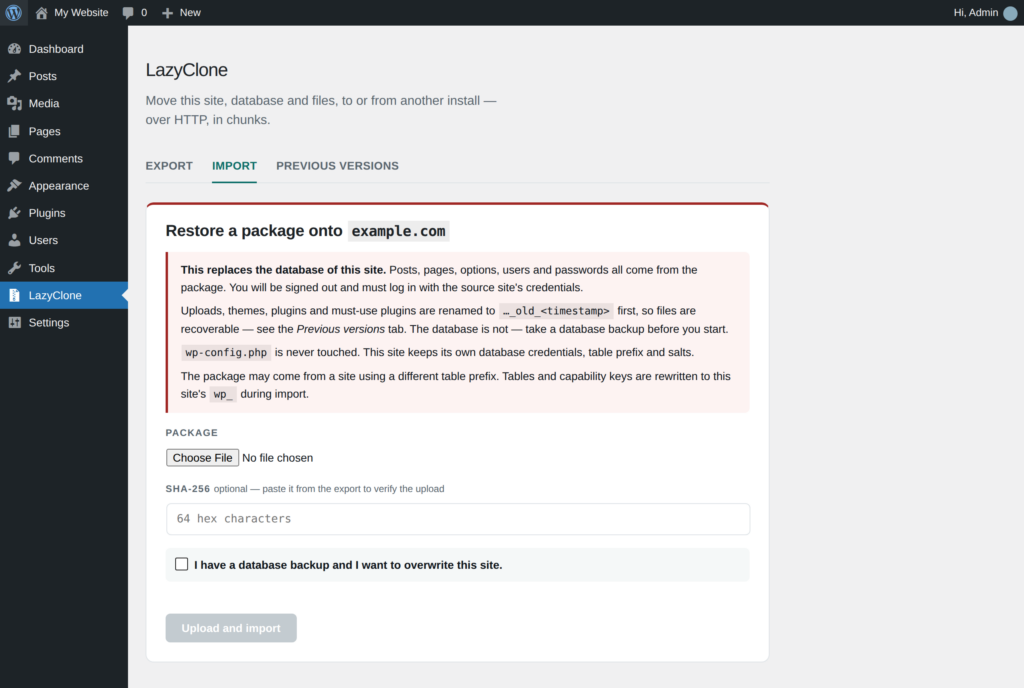
Open LazyClone → Import, choose the file, tick the box confirming you have a backup and press Upload and import. The file uploads in pieces, then LazyClone unpacks it, restores everything and fixes all the addresses.
🔑 Log in
With the original site’s login
Because the copy now has the original site’s users, you log in with the username and password from the site you copied. LazyClone hands you the login link when it finishes. That is the whole process.
Closed the tab halfway through?
Open LazyClone again and it offers to carry on from where it stopped. A dropped upload resumes by itself too.
The usual way, and the LazyClone way
😩
Moving a site usually means
- an FTP program and a set of login details you have to find
- exporting a database in one tool and importing it in another
- a search-and-replace step you must not forget
- images that stop loading and menus that point at the wrong site
- or a migration service that wants an account and a monthly fee
😌
With LazyClone it means
- one button on each site
- one file to download and upload
- addresses, images and menus fixed automatically
- the previous version kept safe in case you need it
- no account, no service, no fees beyond the plugin
What is copied
Your site travels. Your server’s settings stay put.
LazyClone copies the things that make your site your site: all your content and settings, your media library, your active theme and your active plugins. It deliberately leaves alone the things that belong to the server the site runs on — above all the file that tells WordPress where its database lives. That is why a LazyClone import cannot leave a site unable to load, which is the classic way a manual move goes wrong.
Copied
Pages, posts, comments, settings and users. Your media library. Your active theme (parent and child). Your active plugins. Must-use plugins, if you tick them.
Left alone
The receiving site’s database connection, its web address, its security keys and its server files. LazyClone never reads or writes any of them.
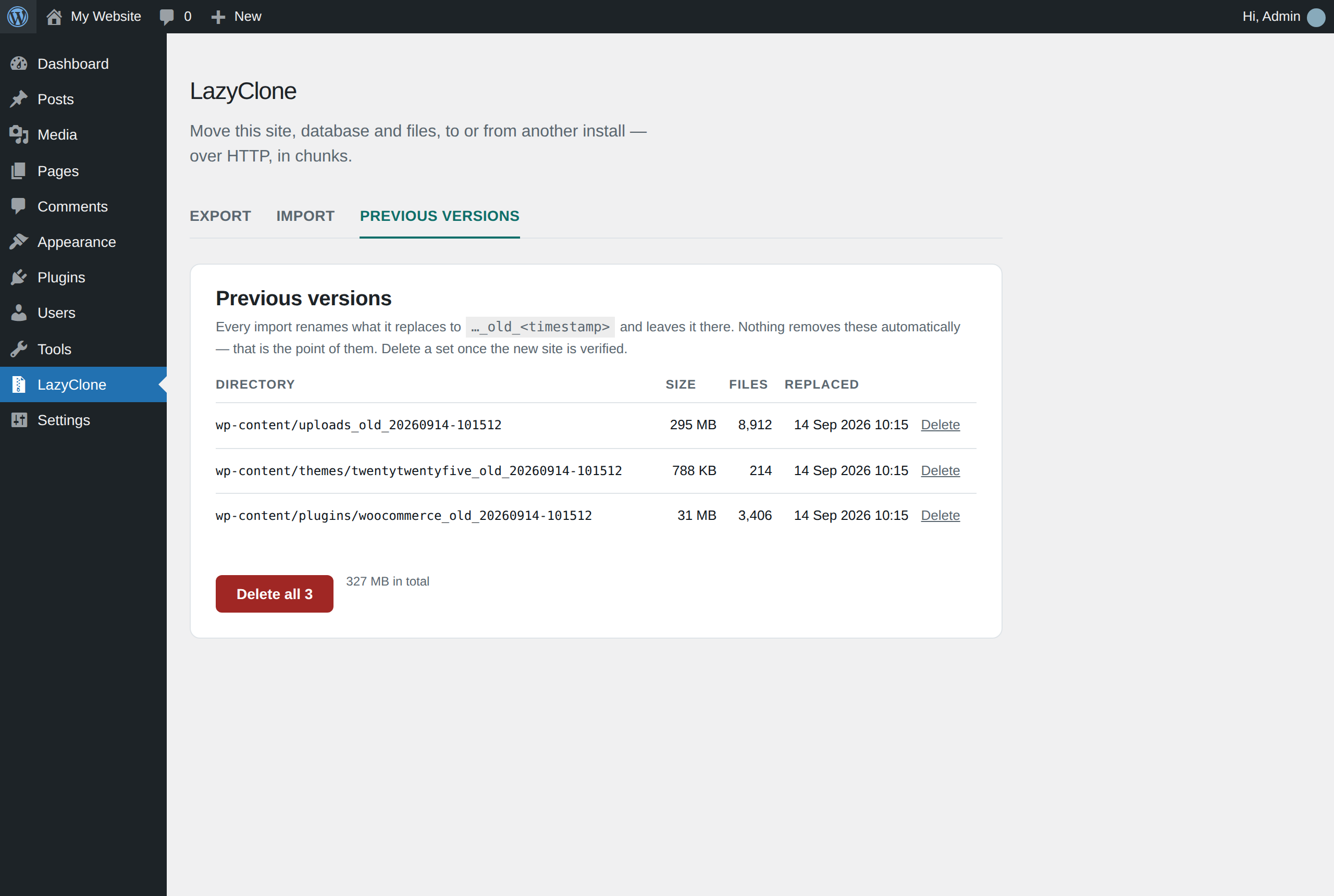
Before anything is replaced on the receiving site, LazyClone renames the existing files to a dated “previous version”. Those are never deleted automatically. When you are happy with the new site, the Previous versions tab shows each set with its size and a delete button.
⚠️ One thing LazyClone does not keep
The receiving site’s content (its database) is replaced by the copy and is not backed up first. Take a backup of the receiving site before importing. The import screen asks you to confirm that you have.
Who it is for
🏪
Site owners
You want to try a new look, a new plugin or a big content change without doing it on the site your customers are using. Copy the live site to a test site, experiment freely, then copy the result back when it is ready.
🧑💻
Freelancers and agencies
Pull a client’s site down to your own server, redesign it, push it back. Or build on your server and deliver a finished site to the client’s hosting in one upload, without asking them for FTP or hosting logins.
🏠
Anyone changing host
Install WordPress and LazyClone on the new host, import the file, and the site is there with every image and link pointing at the right place. The old host stays untouched until you are ready to switch off.
Questions people ask before buying
Do I need to install anything on my computer?
No. LazyClone is a WordPress plugin. You install it on both sites through the normal Plugins screen. The only thing that touches your computer is the export file, which you download from one site and upload to the other.
Do I need FTP, cPanel or database access?
No. You need an administrator login on both WordPress sites, and nothing else.
Will my images, menus and links still work after the move?
Yes. LazyClone rewrites every address from the old site to the new one as part of the import, including addresses stored inside page builders, block settings, menus and widgets. There is no separate search-and-replace step.
Can I use it to copy a site to a new domain name?
Yes. The receiving site keeps its own address, and everything from the copy is rewritten to match it.
What happens to the site I import onto?
Its content is replaced by the copy. Its files (media, theme, plugins) are renamed to a dated “previous version” rather than deleted, and listed on the Previous versions tab. Its own server settings are left untouched, so it keeps working.
Why do I have to log in again after importing?
Because the copy brings its users with it. After the import, the receiving site has the same accounts as the site you copied, so you log in with those. LazyClone gives you the login link when it finishes.
My site is big. Will it time out?
LazyClone works in small steps sized to your host, and the upload resumes automatically if the connection drops. A site with several gigabytes of images takes a while, but it gets there. Very large sites need some free disk space on both ends while the file is being built.
Can I import a file someone else sent me?
Only import files you made yourself, or that come from someone you trust completely. Restoring a copy means running its contents on your site, exactly like restoring any backup would.
Does it work with WordPress multisite?
No. LazyClone is for single WordPress sites.
Requirements
Almost every host already has what LazyClone needs
- WordPress 6.0 or newer on both sites (tested up to 7.1)
- PHP 8.4 or newer on both sites — most hosts offer this in their control panel
- The PHP “zip” extension, which almost every host includes — LazyClone tells you on its first screen if it is missing
- An administrator account on both sites
For the technical reader
The technical detail, if you want it
Everything above is all most people need. This section is for the reader who wants to know what is happening underneath.
What travels
The package holds a full database dump (transients skipped) plus, as ticked, wp-content/uploads, the active parent and child theme, the active plugins (LazyClone itself excluded) and the mu-plugins directory. Nothing from the WordPress root travels: no wp-config.php, .htaccess, robots.txt or verification files, and no wp-content drop-ins such as object-cache.php. Those belong to the server they run on.
Uploads that survive real hosting
The package uploads in chunks sized from the receiving server’s own upload_max_filesize and post_max_size (80% of the smaller, capped at 5 MB). If a web server in front of PHP rejects a chunk with 413, the uploader halves the chunk and retries, down to 256 KB. Any other failure is retried up to five times, and before each retry the uploader asks the server how many bytes it actually holds and resumes from there, so nothing is sent twice or skipped. An optional SHA-256, shown at export, verifies the upload before anything is touched.
Serialization-aware search and replace
Site URL, home URL, uploads path, wp-content path and ABSPATH are rewritten from the source values to the target’s. The rewrite unserializes, walks and re-serializes PHP-serialized values rather than string-replacing them, so widget settings, theme mods and ACF fields keep their byte counts correct; it also applies each replacement in its JSON-escaped form, which is how block attributes, global styles and navigation menus store URLs. Targets are discovered, not listed: every table with the site’s prefix and every text column in it, paged by primary key, so WooCommerce lookup tables and form entries are covered too.
Different table prefixes
The target keeps its own $table_prefix. Table names, the {prefix}user_roles option and prefix-derived usermeta keys ({prefix}capabilities above all) are rewritten during import, so a standard wp_ site imports cleanly onto a hardened install with a random prefix.
Staying alive through the import
Restoring the database replaces the users table, which invalidates your session mid-import. LazyClone mints a per-job capability token before it starts, so the remaining steps run without your session. After every database step it pins siteurl and home back to the target, so a failed import cannot leave the site redirecting to the source. During the file swap a temporary must-use plugin restricts WordPress to loading LazyClone alone, so the source site’s plugin list is never booted against a half-restored database; it self-expires after 30 minutes. If a step fails, the browser shows the recorded fatal and the last database errors rather than a bare 500, and an unfinished job can be resumed or discarded from the LazyClone screen.
Known limits
- Single site only; multisite is not supported.
- Option names derived from the prefix by third-party plugins are not rewritten.
- Values holding serialized objects are skipped by the rewriter rather than risk corrupting them; raw binary in text columns needs
mysqldump. - Database views are not exported.
- Very large media libraries are slow rather than broken: the archive is rewritten at each step, so the job briefly needs a second copy’s worth of free space.
- On Nginx,
wp-content/lazyclone-jobs/is not protected by the bundled.htaccess; add alocationblock or rely on the unguessable job id.