I wanted to turn my WordPress sites into shareable demos without the pain of writing Blueprint JSON by hand. So I built a plugin that does exactly that—and I’m sharing it with you.
I’ve been building WordPress plugins for decades. One thing that’s always frustrated me: when you want someone to try your plugin—especially a paid one—you’re asking them to do a lot. Install WordPress. Upload your plugin. Configure a database. Maybe set up a staging site. By the time they’ve jumped through those hoops, the moment’s gone. The curiosity fades. The conversion never happens.
WordPress Playground changed how I think about this. It runs WordPress entirely in the browser—no server, no setup, no waiting. Someone clicks a link and, seconds later, they’re inside a live WordPress instance. For plugin developers, that’s huge: you can send a URL that drops users straight into a preconfigured demo of your product.
The catch? You need a Blueprint—a JSON file that tells Playground exactly what to install, what to configure, and what to show. I tried writing one by hand. It was tedious, error-prone, and frankly miserable. So I built Blueprint Exporter: a plugin that turns your existing WordPress site (with your plugins, your content, your settings) into a ready-to-use Blueprint file. Export, host it, share the link. Done.
This post is about why I built it, how it works, and how you can use it—especially if you’re selling commercial plugins and want people to actually experience what you’ve built before they buy.
Why Playground Matters (and Why I Care)
WordPress Playground uses WebAssembly and JavaScript to run PHP and WordPress in the browser. No backend. Users get a full admin and frontend, install themes and plugins, create content, experiment. When they close the tab, it’s gone. Ephemeral, safe, instant.
For me, that meant:
- Zero-friction demos. Send a link. They land in WordPress with your plugin already active. No signup, no download, no setup.
- Consistent environments. Everyone sees the same thing. No “it works on my machine.”
- Documentation that lives. Instead of screenshots, you can say: “Try it yourself.” Here’s a link.
- Support. Reproduce issues in a clean environment. Share a Blueprint that recreates the bug.
For commercial plugins, it’s even more valuable. Your product lives behind a paywall. Users can’t try before they buy without trial licenses, staging sites, support tickets. Playground lets you create a demo that runs in the browser. No trial keys. No staging. Just a link that shows your plugin in action.
That’s the future I wanted. So I built the tool to get there.
The Blueprint Problem: Why I Built an Exporter
A Blueprint is a JSON document. It specifies which WordPress and PHP versions to use, which plugins to install (from wp.org or custom URLs), which theme to activate, what content to create, what options to set—menus, widgets, users, everything.
Playground reads it and executes it step by step. The result is a fully configured site.
Writing one manually? Possible, but painful. You need to know the exact schema, the correct step types (installPlugin, runPHP, setSiteOptions, etc.), and how to encode your content. One typo and it fails. For a site with dozens of options, multiple plugins, and custom content, the effort is prohibitive.
I wanted the opposite workflow: configure a real WordPress site the way I want it, then export that configuration as a Blueprint. So I built Blueprint Exporter to do exactly that. It handles the encoding, the structure, the edge cases. You get a blueprint.json that just works.
What I Built: The Blueprint Exporter UI
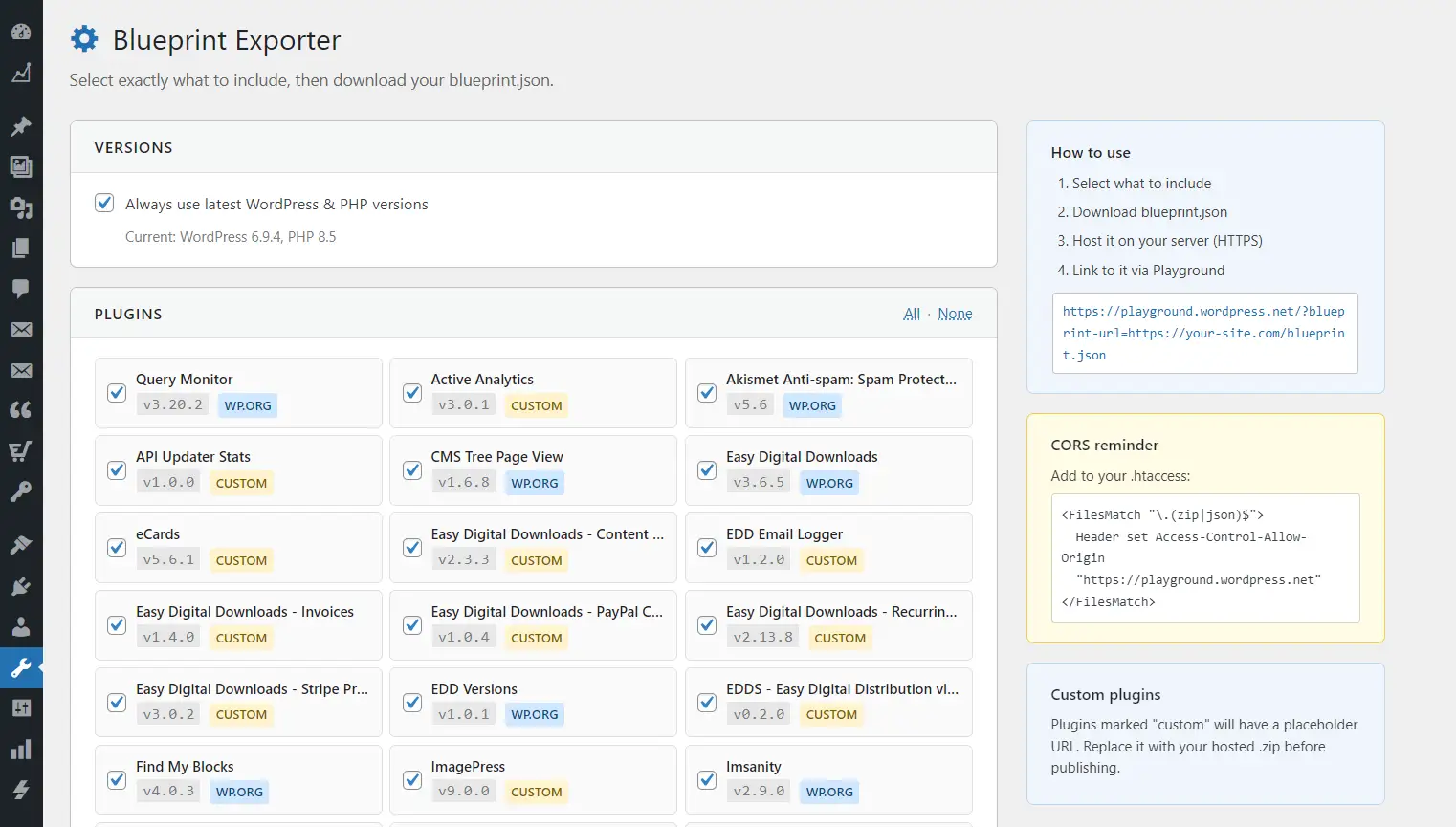
Blueprint Exporter adds a Tools → Blueprint Exporter page to your WordPress admin. I organized it into sections so you can pick exactly what to include:
- Versions — Use the latest WordPress and PHP, or pin to your current versions. I default to “latest” so demos stay evergreen.
- Plugins — All your active plugins, with checkboxes. I mark wp.org plugins as “wp.org” (they install from the directory) and custom ones as “custom” (you’ll need to host the .zip and update the URL). The detection uses the update transient, not the PluginURI header—I learned the hard way that many wp.org plugins point that at their own site.
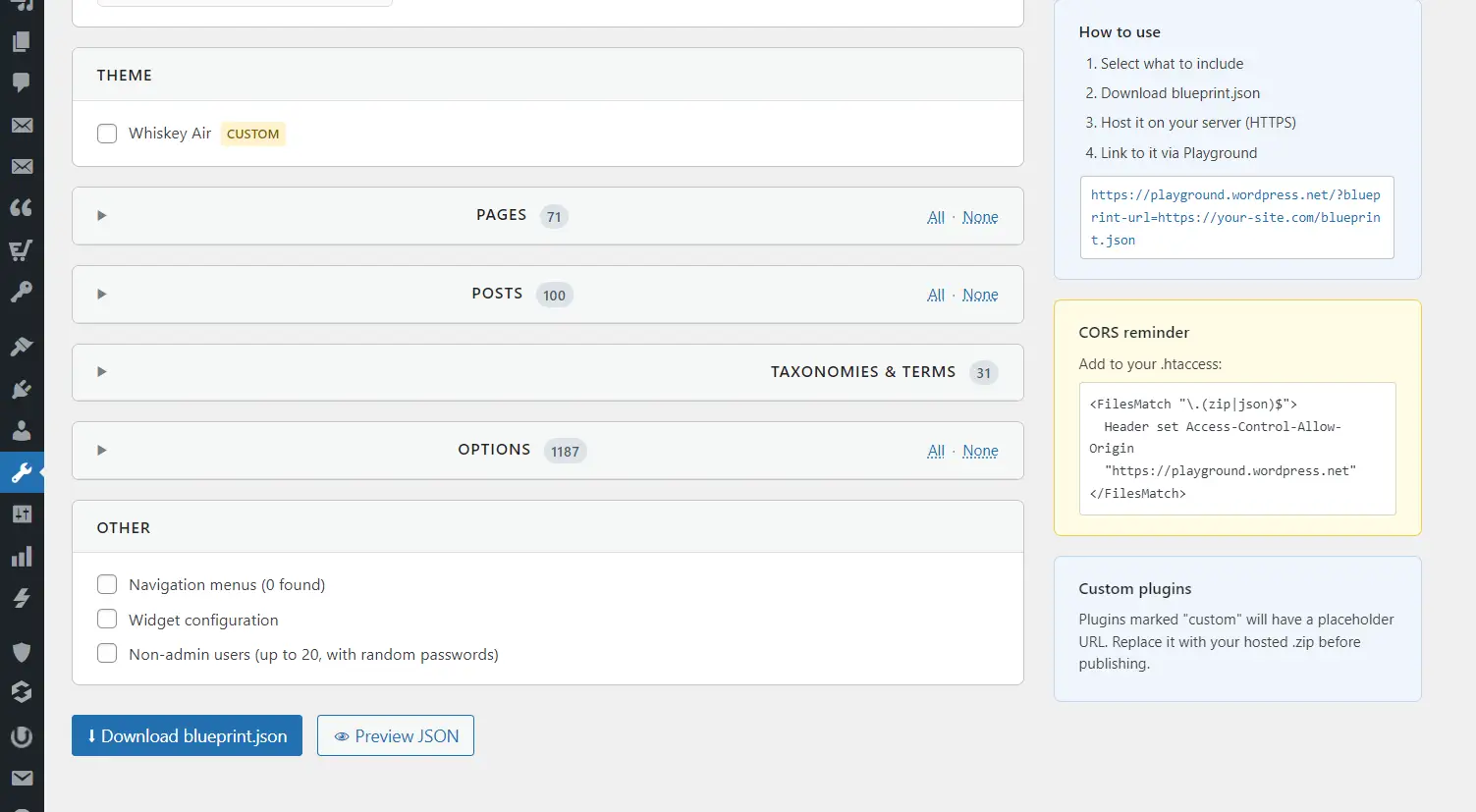
- Theme — Your active theme. Same logic: wp.org or custom.
- Pages — Published pages, including shortcode content. I include the front page marker if you’ve set one.
- Posts — Published posts (I cap at 100 to keep things sane).
- Taxonomies & Terms — Categories, tags, whatever public taxonomies you have.
- Options — Core and plugin options, grouped by prefix. I tried to make this readable: WordPress Core first, then plugin names, then “Other.” Core options are checked by default; plugin options aren’t. You decide.
- Other — Menus, widgets, non-admin users (with random passwords—I’m not putting real credentials in a shared Blueprint).
You tick what you want, then hit Download blueprint.json or Preview JSON. The preview lets you see the raw output and test it in Playground before you host it. I use that a lot when I’m iterating.
How to Use It: From Export to Shareable Link
1. Install and Activate
Upload the plugin to wp-content/plugins/blueprint-exporter, activate it, and go to Tools → Blueprint Exporter.
2. Configure Your Demo Site
Set up your WordPress site the way you want the demo to look. Activate your plugin. Create sample pages or posts. Configure options. This is your source of truth—the exporter just captures what’s there.
3. Select What to Export
Tick the boxes. Use “All” and “None” to quickly select or deselect groups. I kept the UI simple on purpose: no wizard, no steps. Just checkboxes and a download button.
4. Download or Preview
Click Download blueprint.json or Preview JSON. I recommend previewing first—you can click “Test in Playground” and see if everything loads correctly before you host it.
5. Host the Blueprint
Upload blueprint.json to a server with HTTPS. Playground requires it. The file can live anywhere—your main site, a CDN, a static host—as long as it’s publicly accessible.
6. Configure CORS
Playground fetches Blueprints from your server. Browsers block cross-origin requests unless you send the right headers. I add this to my .htaccess:
<FilesMatch "\.(zip|json)$">
  Header set Access-Control-Allow-Origin "https://playground.wordpress.net"
</FilesMatch>
If you use Nginx, configure the equivalent Access-Control-Allow-Origin header.
7. Share the Link
https://playground.wordpress.net/?blueprint-url=https://your-site.com/blueprint.jsonReplace the URL with yours. Anyone who clicks gets an instant WordPress instance, configured exactly as you specified.
Commercial Plugins: What I Learned
For paid plugins, you can’t distribute from WordPress.org. Blueprint Exporter handles this with custom plugin URLs. When you export a plugin that isn’t from the directory, I put in a placeholder like https://your-server.com/plugin-slug-latest.zip. You replace it with your actual hosted .zip URL.
Here’s what I’ve found works:
- Create a demo build. Package a version with demo mode, feature limits, or watermarks. Host that .zip. Use it in the Blueprint. Users get a taste without full access.
- Keep it lean. Only include what showcases your plugin. Fewer plugins and options = faster load, fewer failures.
- Guide the user. Add a welcome page or “Getting Started” post. Playground sessions are ephemeral—they won’t have your docs open. Inline guidance helps.
- Use latest versions. I default to “Always use latest WordPress & PHP” so your demo runs on current Playground infrastructure. Stays evergreen.
- Re-export periodically. Playground and the schema evolve. I re-export and re-test after major WordPress releases. You should too.
A Few Technical Decisions
Custom plugins and themes: I insert placeholder URLs and add a _note in the JSON reminding you to replace them. Search for your-server.com in the exported file.
Option grouping: I group by prefix. Core options under “WordPress Core,” plugin options matched to plugin slugs, the rest by first prefix or “Other.” I spent some time on this—options can be a mess. Hopefully the grouping makes sense.
Users: I recreate them with random passwords. No real credentials in a shared Blueprint. Admin (ID 1) is excluded. Useful for demos that need multiple roles.
Sensitive data: I exclude transients, cron, auth keys, and other internal stuff. The export is meant to be shareable.
Beyond Plugin Demos
I built this for plugin authors, but it works for other use cases too:
- Theme developers — Export a site with your theme, sample content, and options.
- Agencies — Client demos without full staging sites.
- Educators — Reproducible environments for courses.
- Documentation — Embed Playground links that drop readers into preconfigured examples.
- Support — Blueprints that reproduce reported issues.
Wrapping Up
I built Blueprint Exporter because I was tired of writing Blueprint JSON by hand. I wanted to configure a real site, hit export, and get something I could host and share. So I coded it. Functional PHP, no jQuery, GPLv3. It’s on GitHub—install it, use it, fork it, improve it.
For commercial plugin developers, Playground is a direct path from “interested” to “trying it.” No trial keys. No staging. Just a link. Your plugin speaks for itself. I hope Blueprint Exporter makes that a little easier.
Blueprint Exporter is open source (GPLv3). WordPress Playground runs at playground.wordpress.net—go try it.